Add a curve
Any Bezier or poly curve, or a mesh line. Each point becomes a post.
A post on every point and a belt, rope, chain, rail or panel on every segment. Move a point and the whole barrier follows.
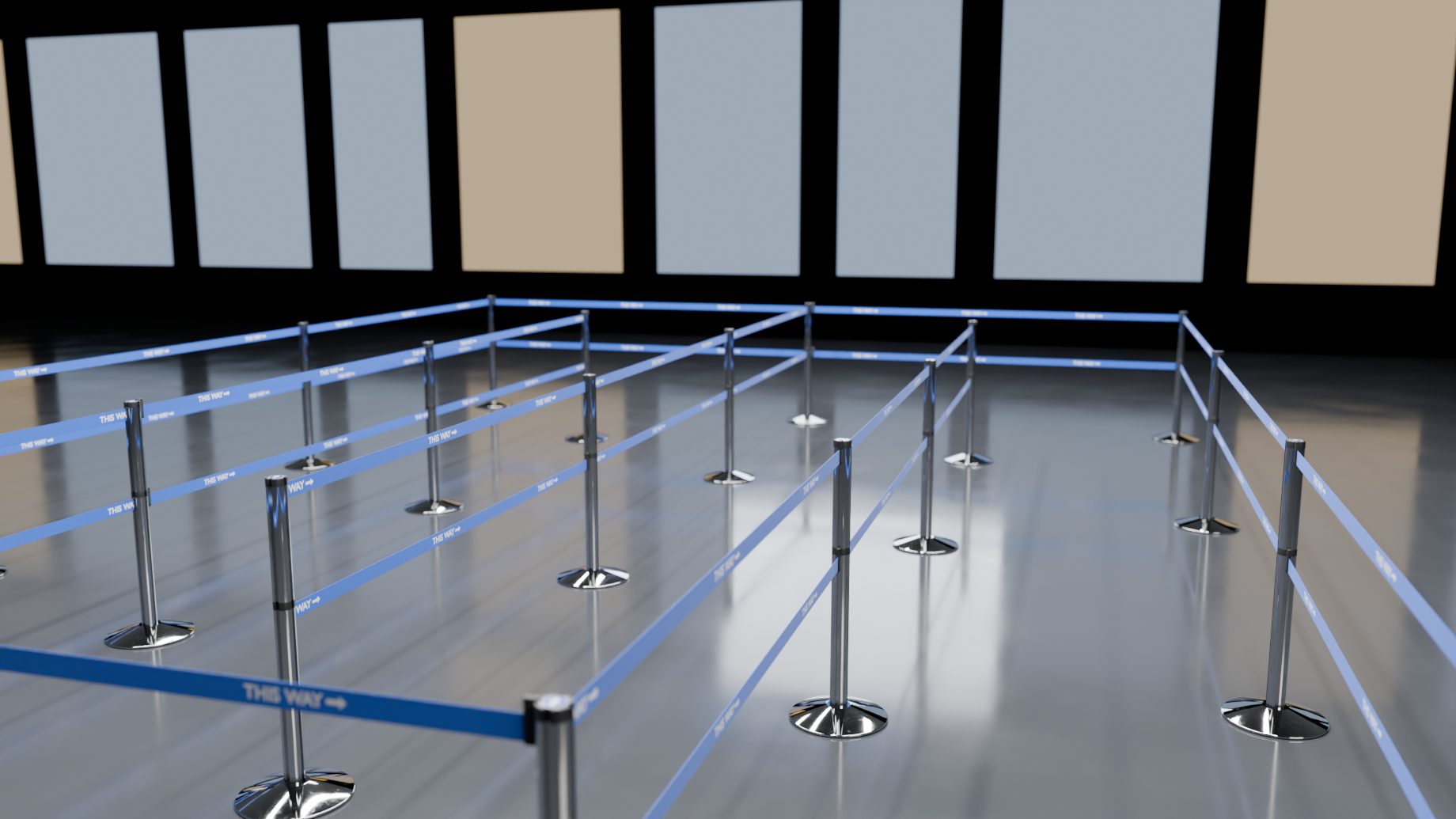
Shift+A > Barrier > pick a product, and it is done. The slider shows a six-point curve before and after.
Any Bezier or poly curve, or a mesh line. Each point becomes a post.
Pick a product from the menu. Or press Make Barrier in the Barriers tab.
A post on every point and a belt on every segment. Move, add or delete points and the barrier follows.
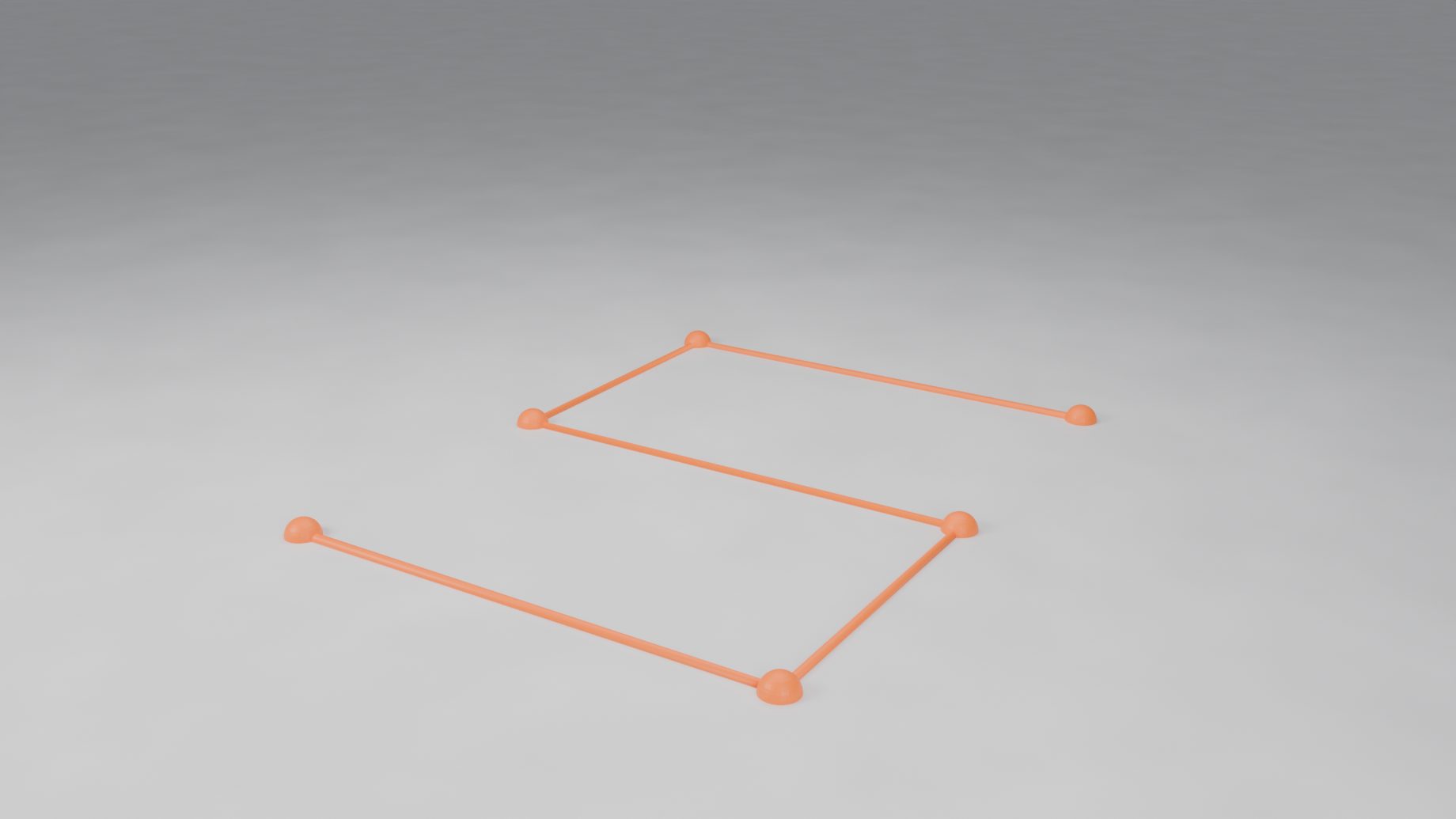
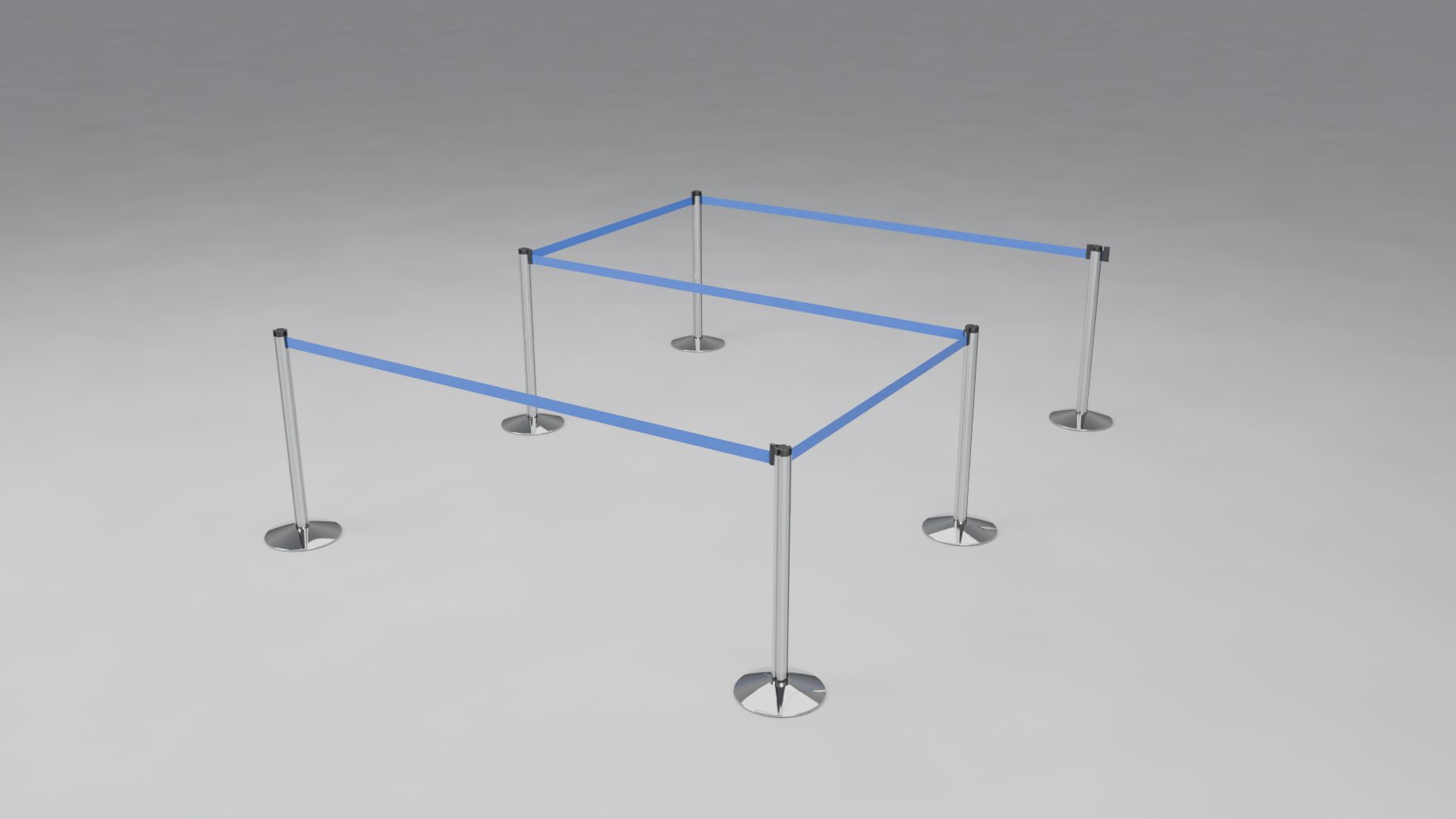
To place posts by clicking instead, press Draw Barrier: each click puts a post, and the add-on stops it where the next belt would be too long.
Pick one in the gallery on the line. The line takes that product's real-world sizes, and your overrides stay. Every size is stored in a data file and marked verified or to verify.
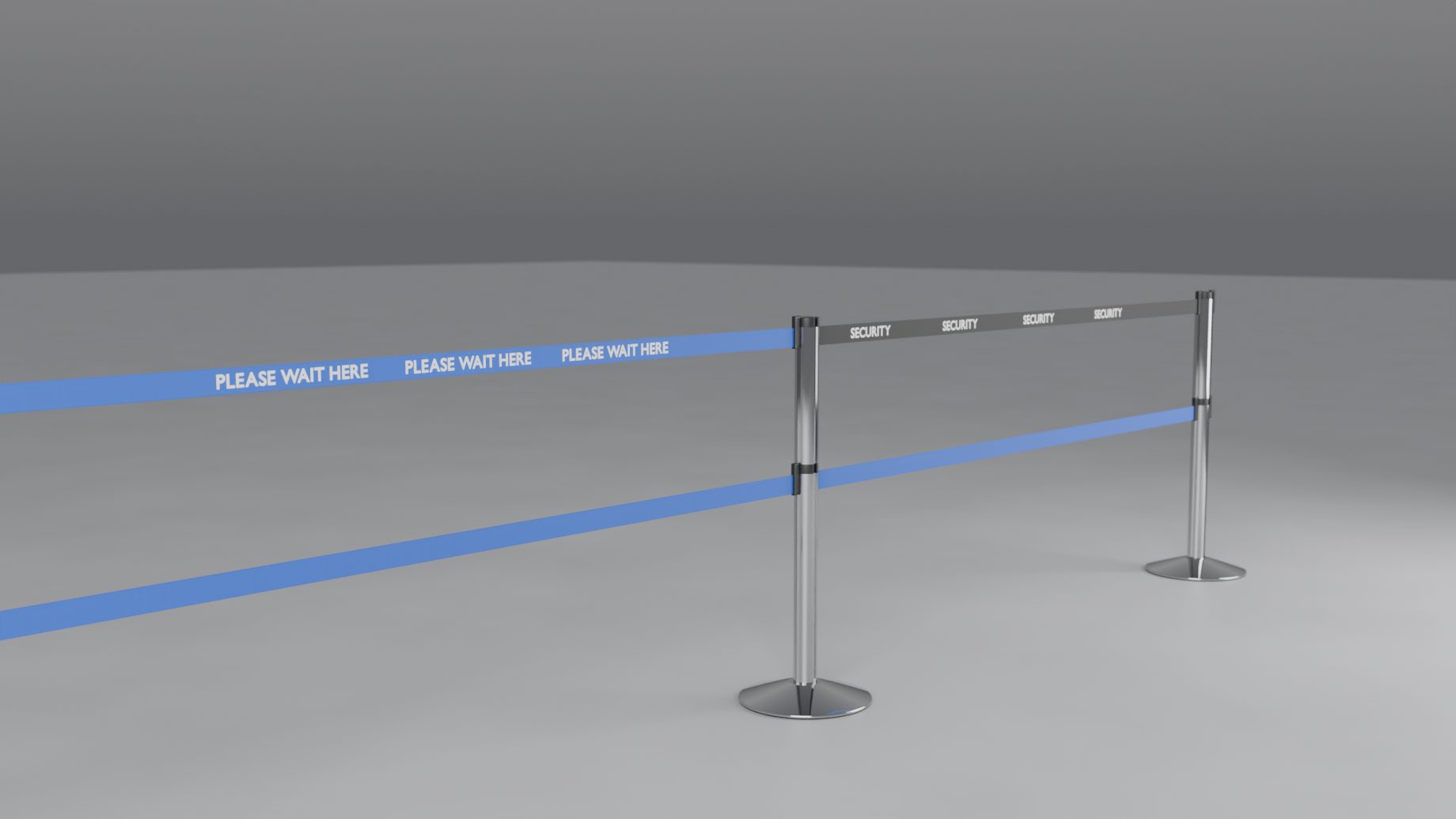
The queue post: a four-slot cassette head, up to four belts per post, one of them its own retractable belt.
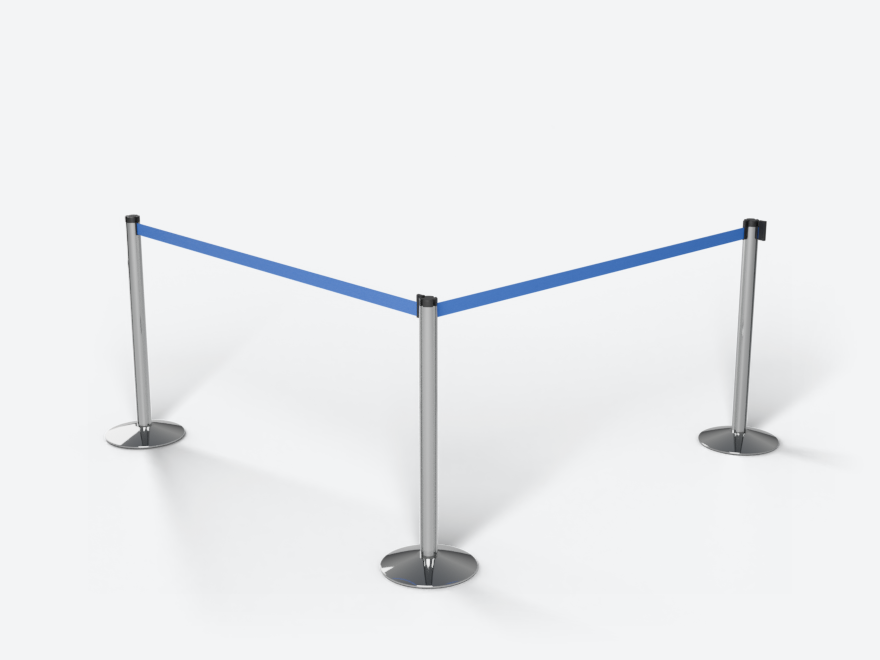
The standard queue post on a flat-topped cone base. The belt wraps the head from its slot.
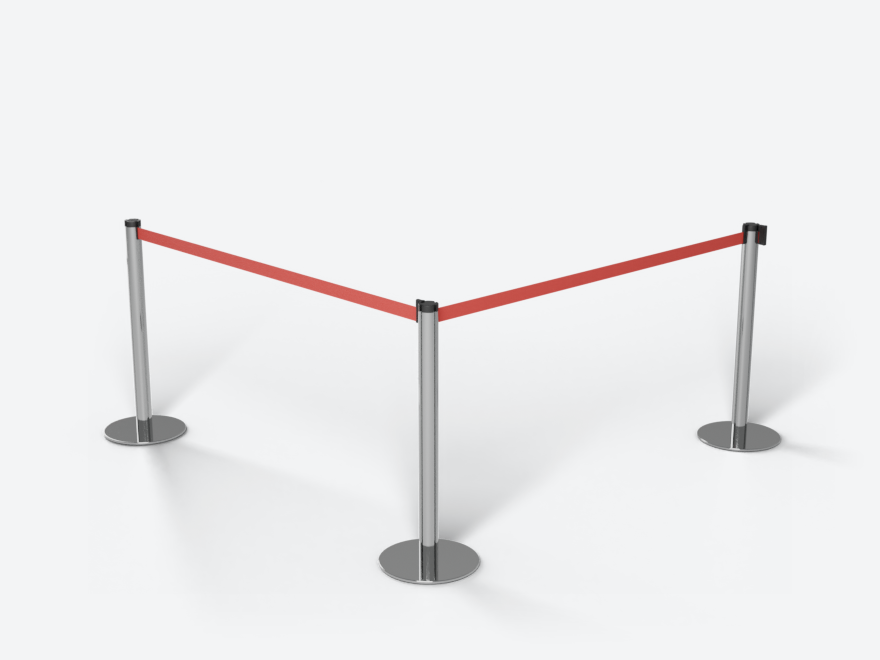
The same post on a slim round disc base, with grooves down the tube.
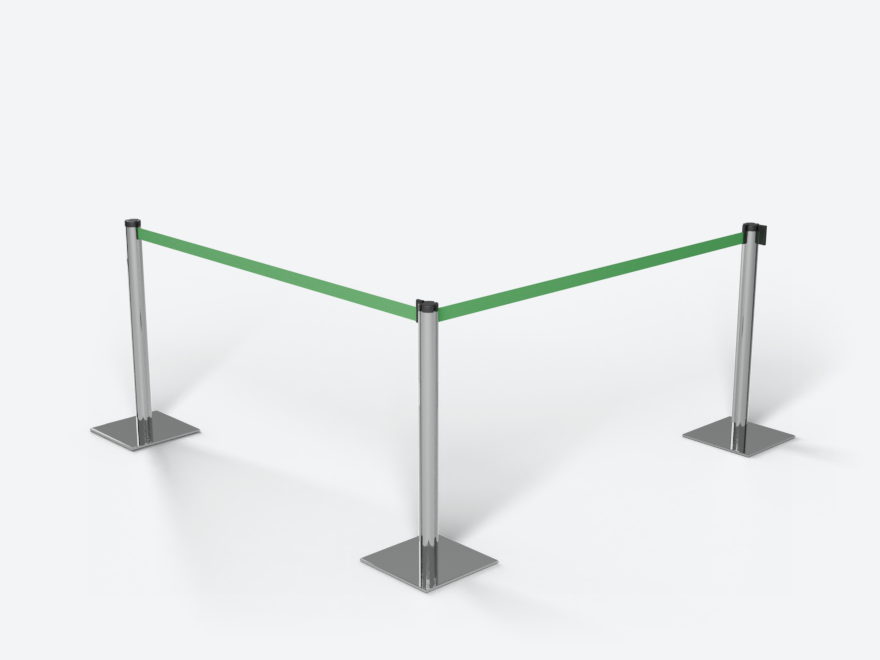
The same post on a square steel plate.
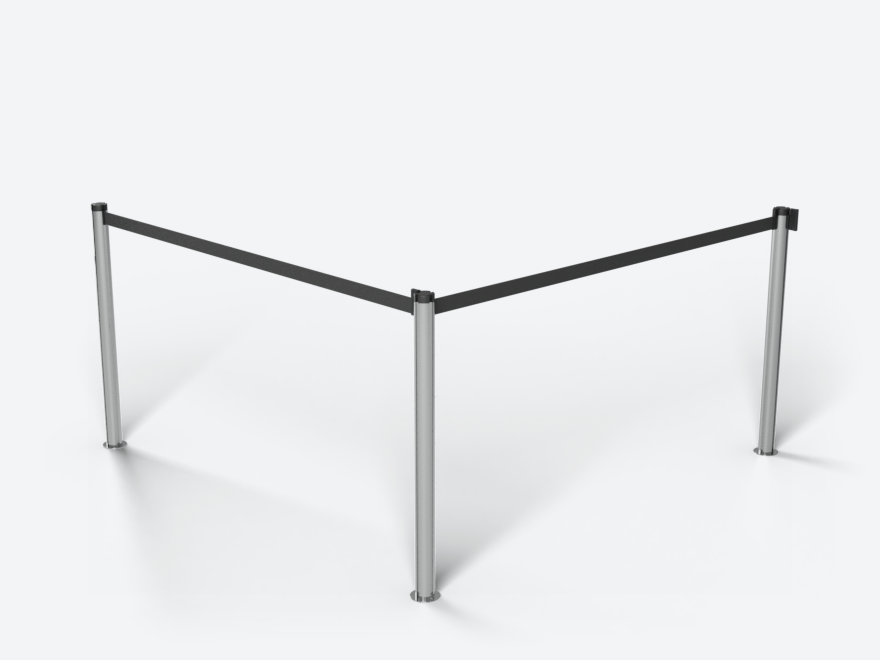
A post that lifts out of a floor socket, as in airports: only a flush cover plate shows.
Velvet or twisted rope that hangs at its own length between brass posts.
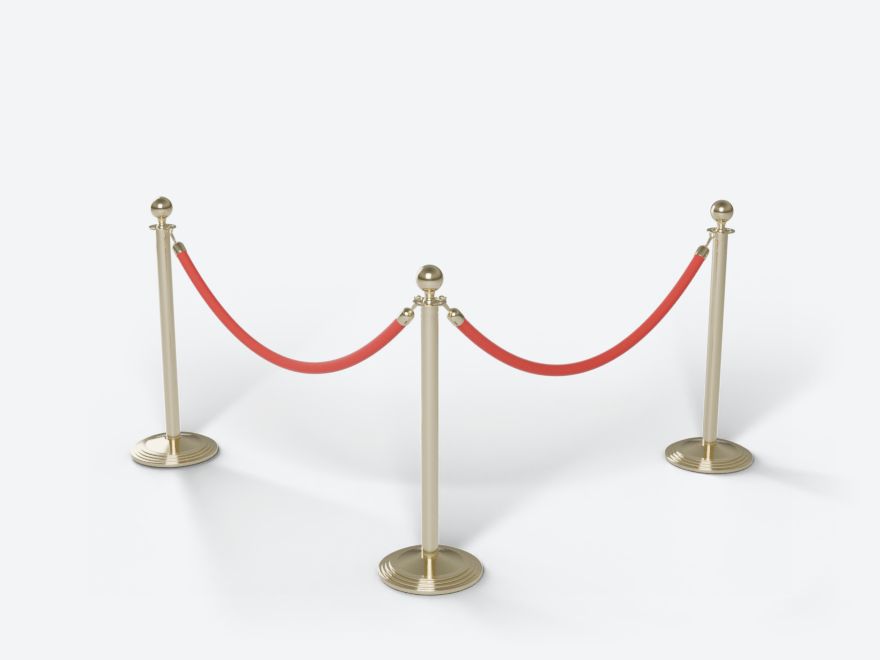
A stepped round base, a ball on a short neck, rope on trigger snaps.
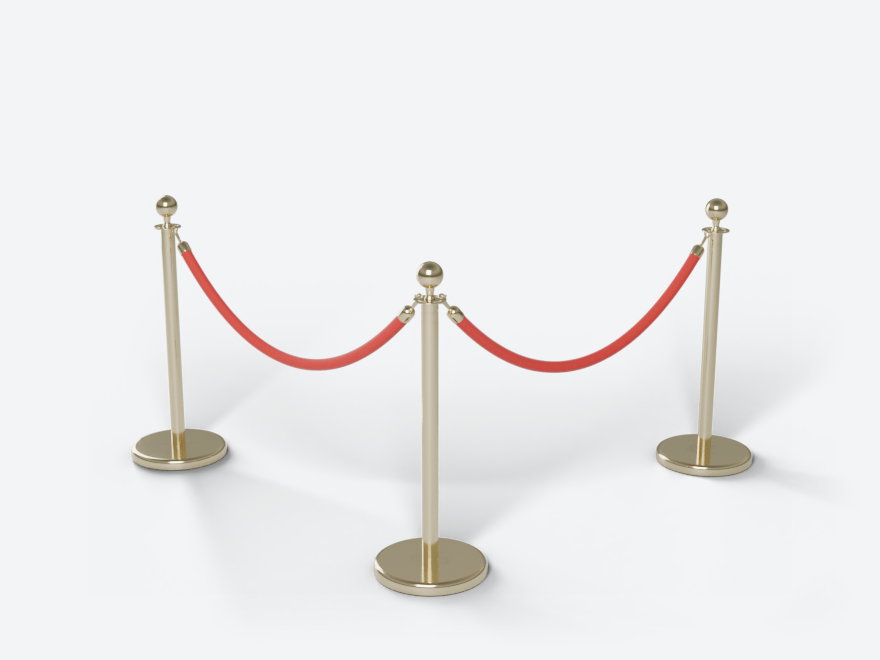
A flat disc base and a flange head with four hook openings. Ball, urn or flat finial, single or double rope.
Whole-link chains that sag between their hooks and are never stretched.
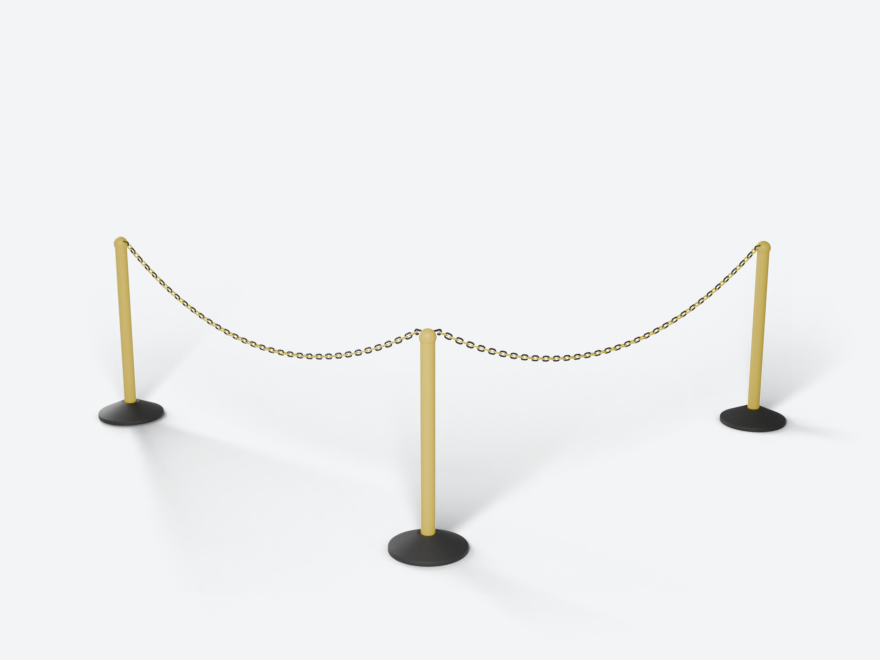
A hollow plastic base, a ball cap and a plastic chain of whole links.
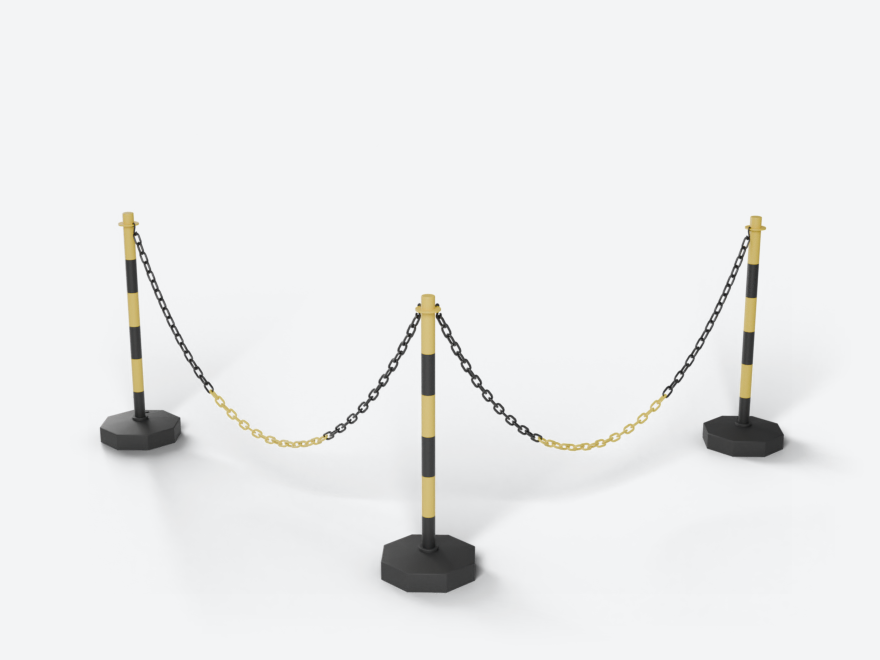
Yellow and black stripes on an octagonal base, S-hooks and a two-colour chain.
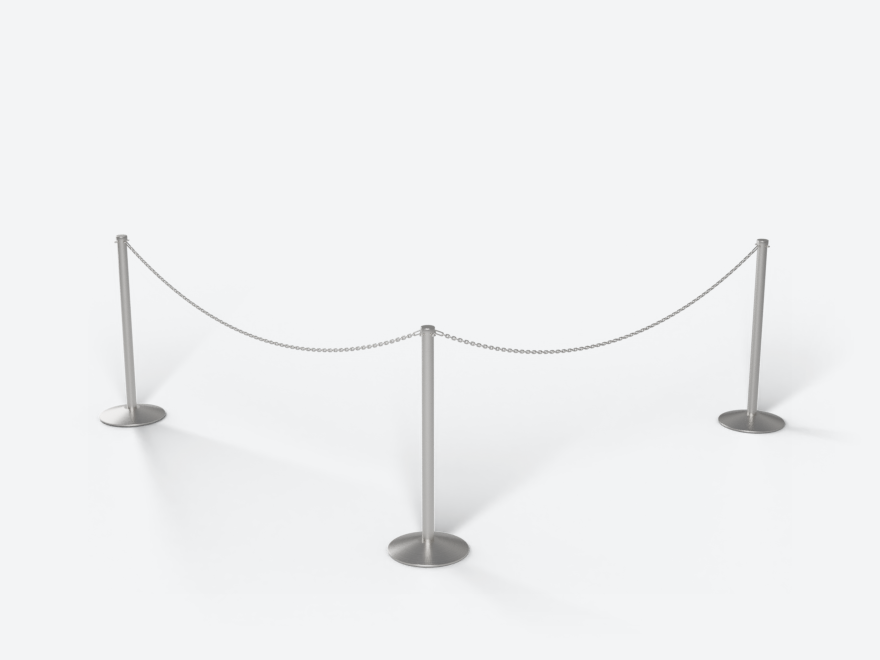
A stainless tube with welded loops and a polished chain on quick links.
Posts that stand alone, or are joined by a chain where you want one.
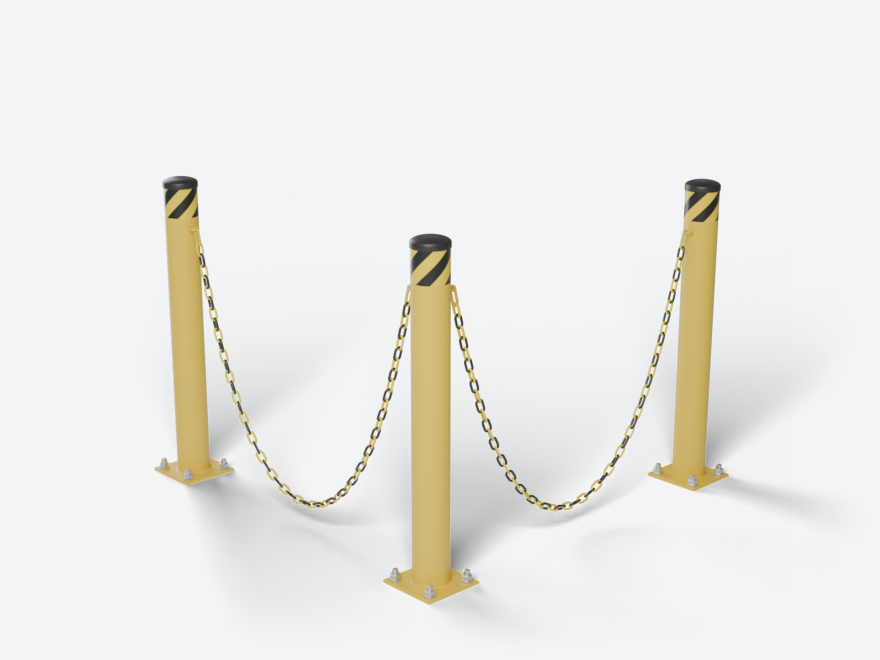
A steel pipe bollard in safety yellow with hazard tape, on a plate or embedded.
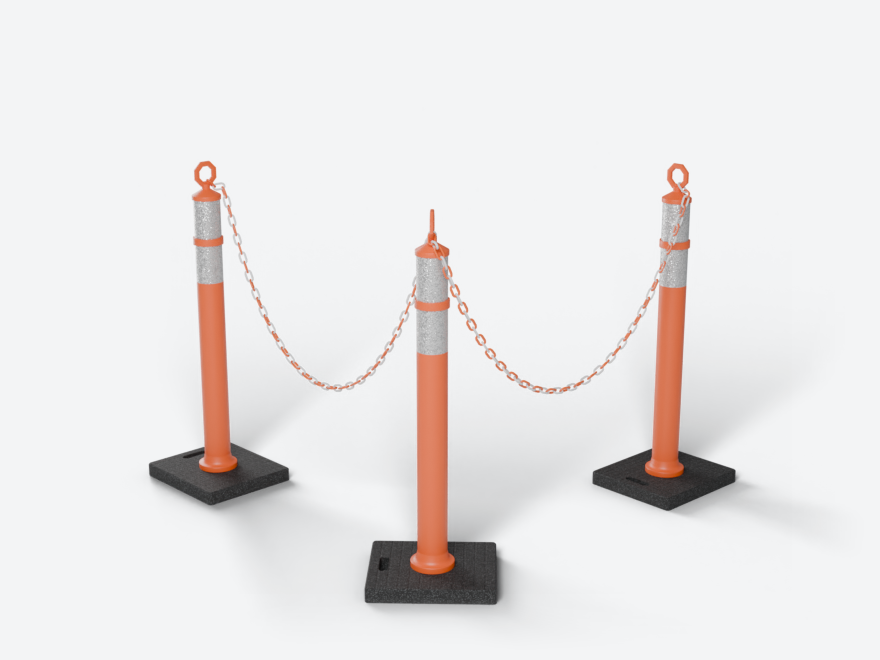
An orange post on a rubber pad with two reflective collars and a ring or T top.
A rail between posts instead of a belt. It is cut to each span or built in whole pieces of your own lengths, and the report lists the stock lengths and cuts.
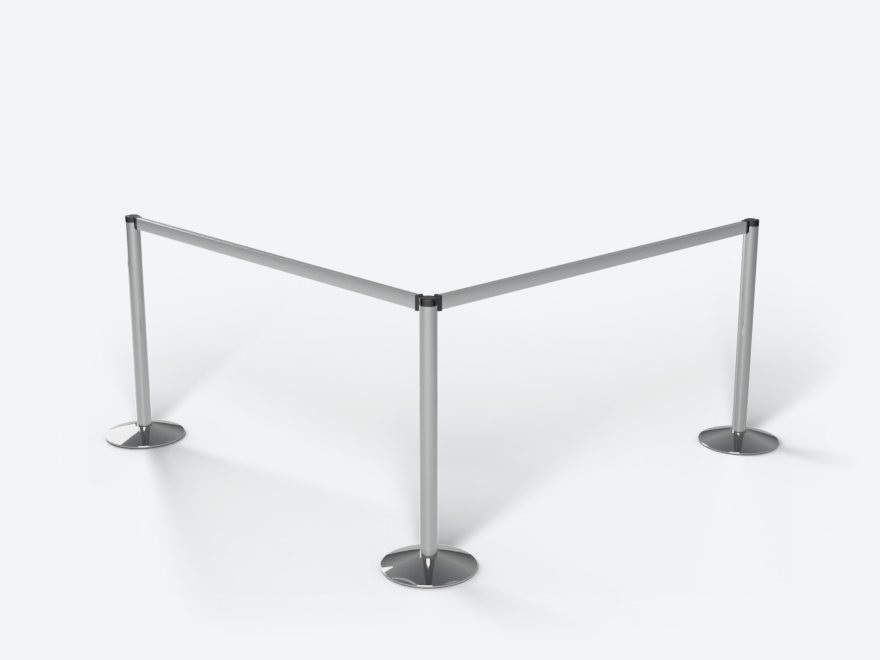
The belt post's head with an aluminium beam hinged between two posts.
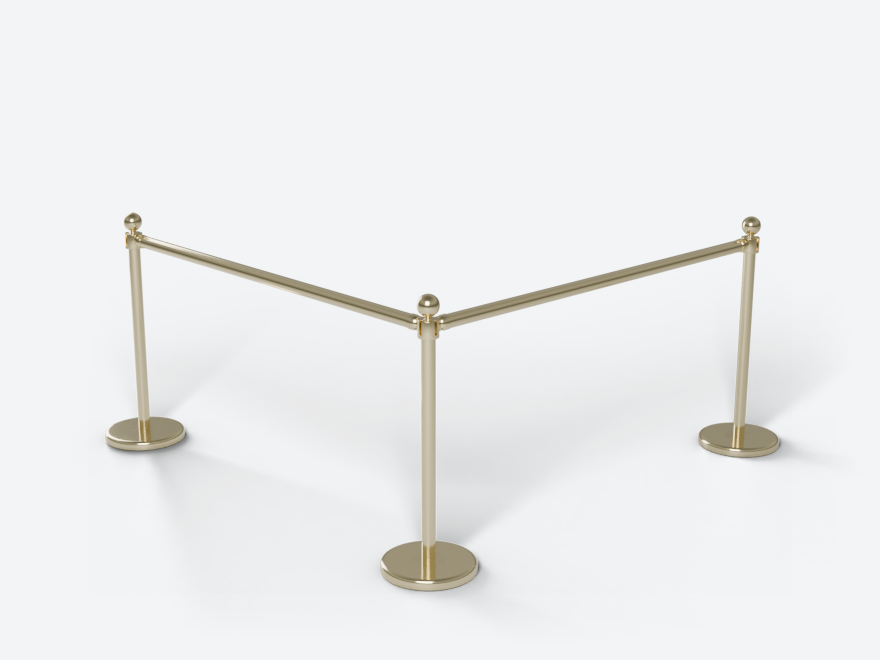
Brass posts with a ball finial and a round polished brass rail.
A framed insert between posts: acrylic, PVC board or your own printed image.
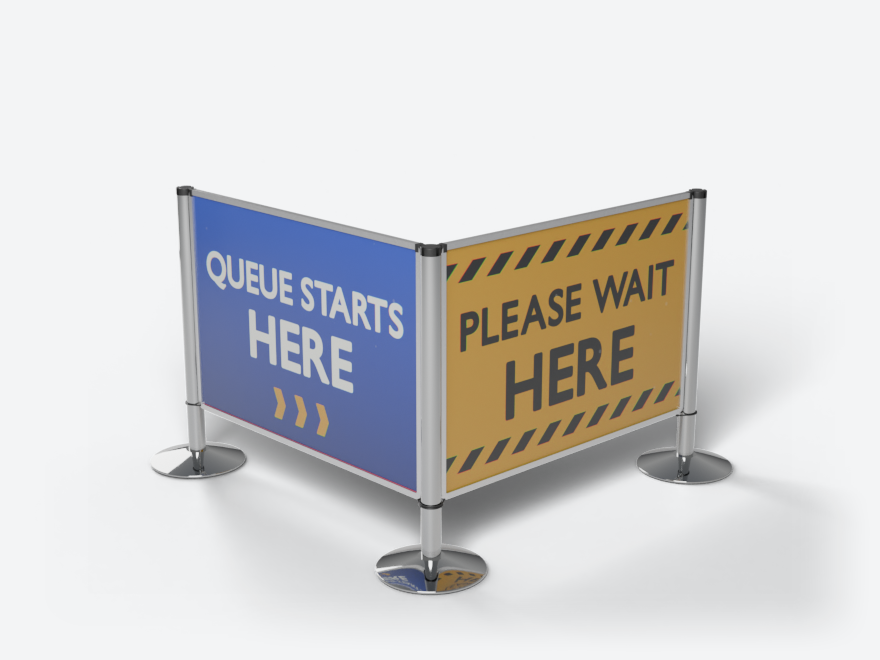
Clear, frosted or grey acrylic, black or white PVC board, or a printed insert from the image library or your own file.
Four panels, one at a time, and a whole look one click away.
The Barriers tab is Queue & Barrier Pro, Look, Line and Selected. Click a post or a belt and the sidebar shows only its settings; press Whole Line and the line's Look and Line come back. A panel shows only what the product has: a rope line has no belt width, a rail line has no logos. Rarely used settings sit in folds, and each panel has a ? that opens its page of the guide.
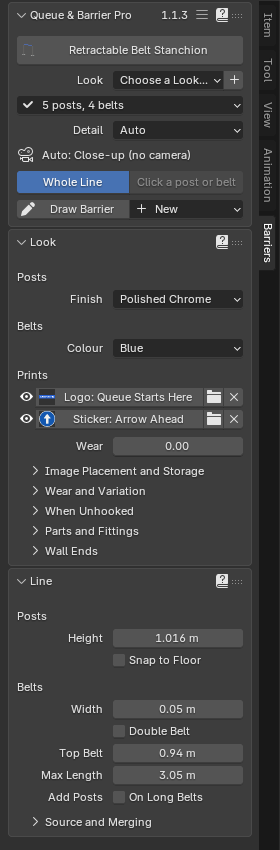 Whole Line: Look and Line
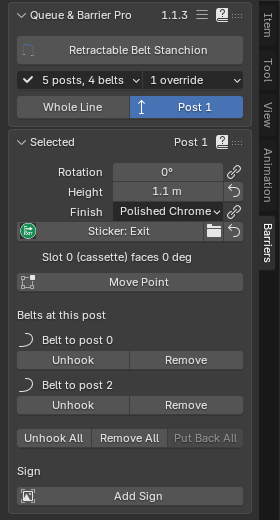 A post clicked: Selected
Airport Blue, Bank Brass, Hotel Red Velvet, Museum Black, Construction Site or Event Branded: one click sets finishes, colours, prints and wear, never a size, and each suits every product. Save your own with +, as Look Only or Look and Sizes, and apply it to any line in any file. Rename, export and import your presets. Default puts every setting back to the product's own.
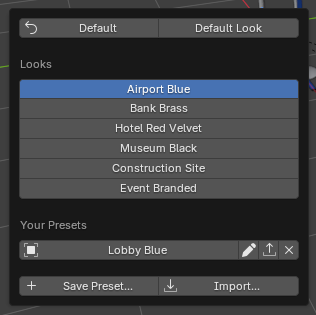 The Look menu
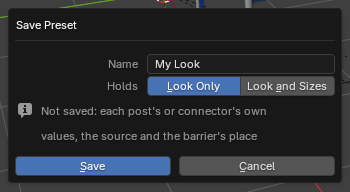 Save Preset
The things that take a week to get right by hand: belts that wrap, belts that hang, ropes that keep their length, values that stay put.
A belt leaves its cassette slot, wraps around the post head and runs tangent to the next post: straight and tensioned, as on a real queue line. Turn a post and the wrap follows, the shorter way round.
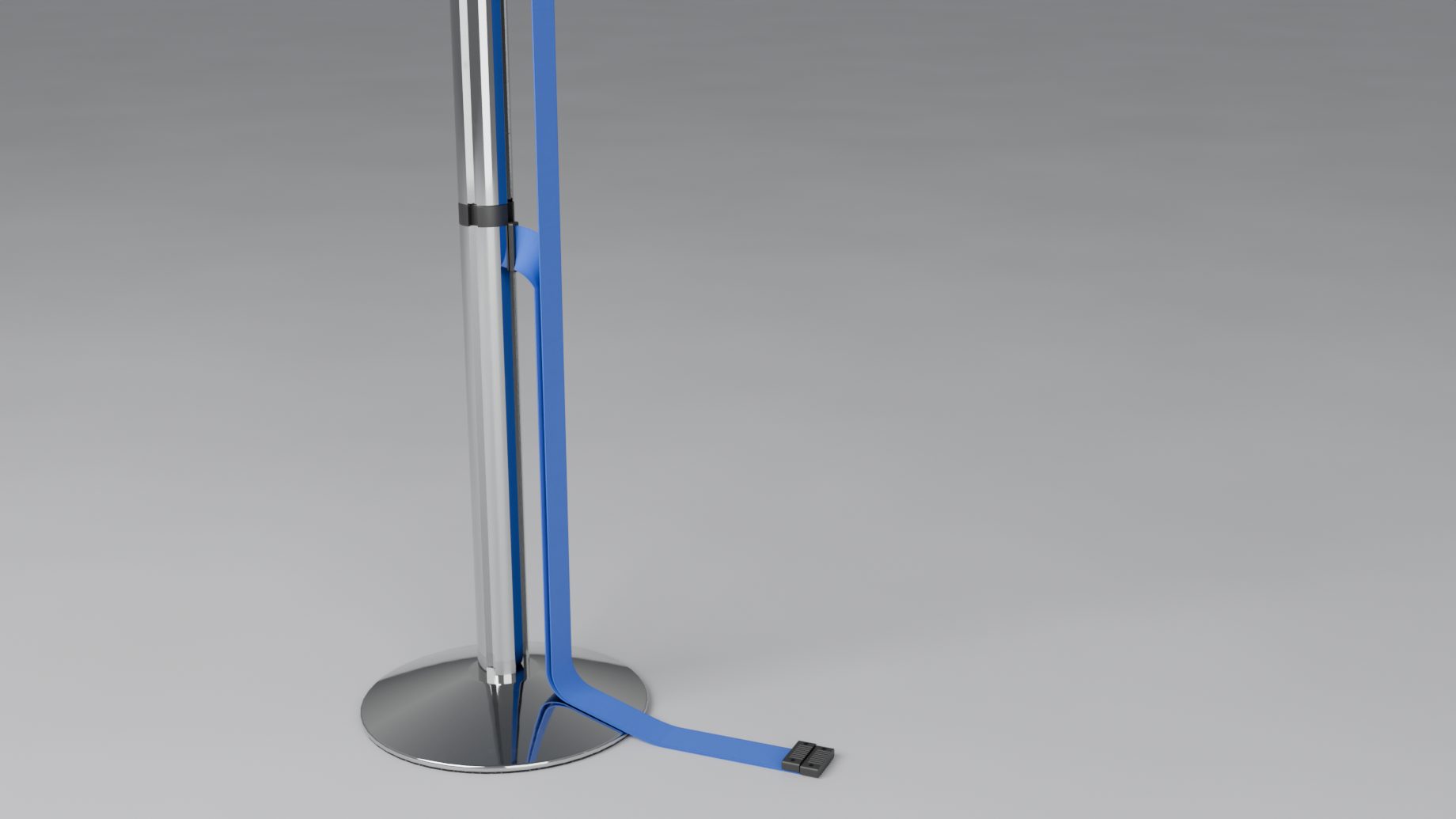
Unhook a belt and it hangs from its post with its clip end on the floor, a double belt lying stacked. If it would drop through another belt, a clip, a latch, a post or a wall unit, it swings aside and rests next to it.
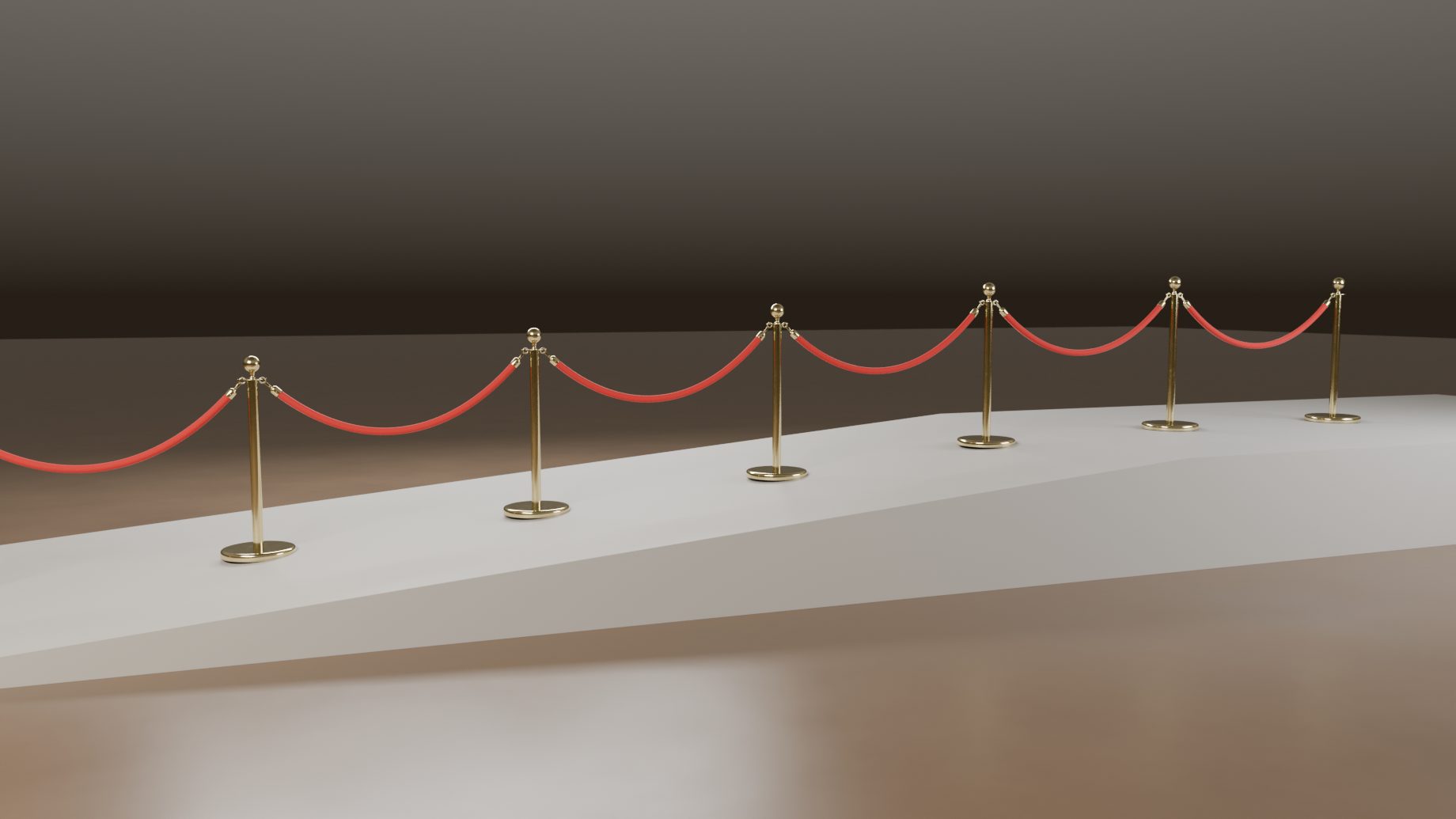
A rope or chain is a fixed length that sags between its posts and is never stretched. Place the posts too far apart and the line is drawn taut and flagged, with the fix in the warning. On a slope, Snap to Floor drops every post onto the surface below it.
Drag a post away and its rope or chain hangs shallower, until it is nearly taut; bring it back and the sag returns. The length never changes. Here the last point of a hotel rope line and of a plastic chain line moves out and back.
Length sets every rope hook to hook, and a single rope can have its own. The posts stay where they are and the sag follows, from a deep loop to just short of taut. A chain's Length is whole links, with a readout of how many.
With Add Posts on Long Belts, a segment longer than the Max Length gets evenly spaced extra posts, and they move as you drag. They are not written into your source: here the line has two points (orange) and up to five posts. Rails, panels, ropes and chains have the same switch: On Long Rails, On Long Panels, On Long Spans.
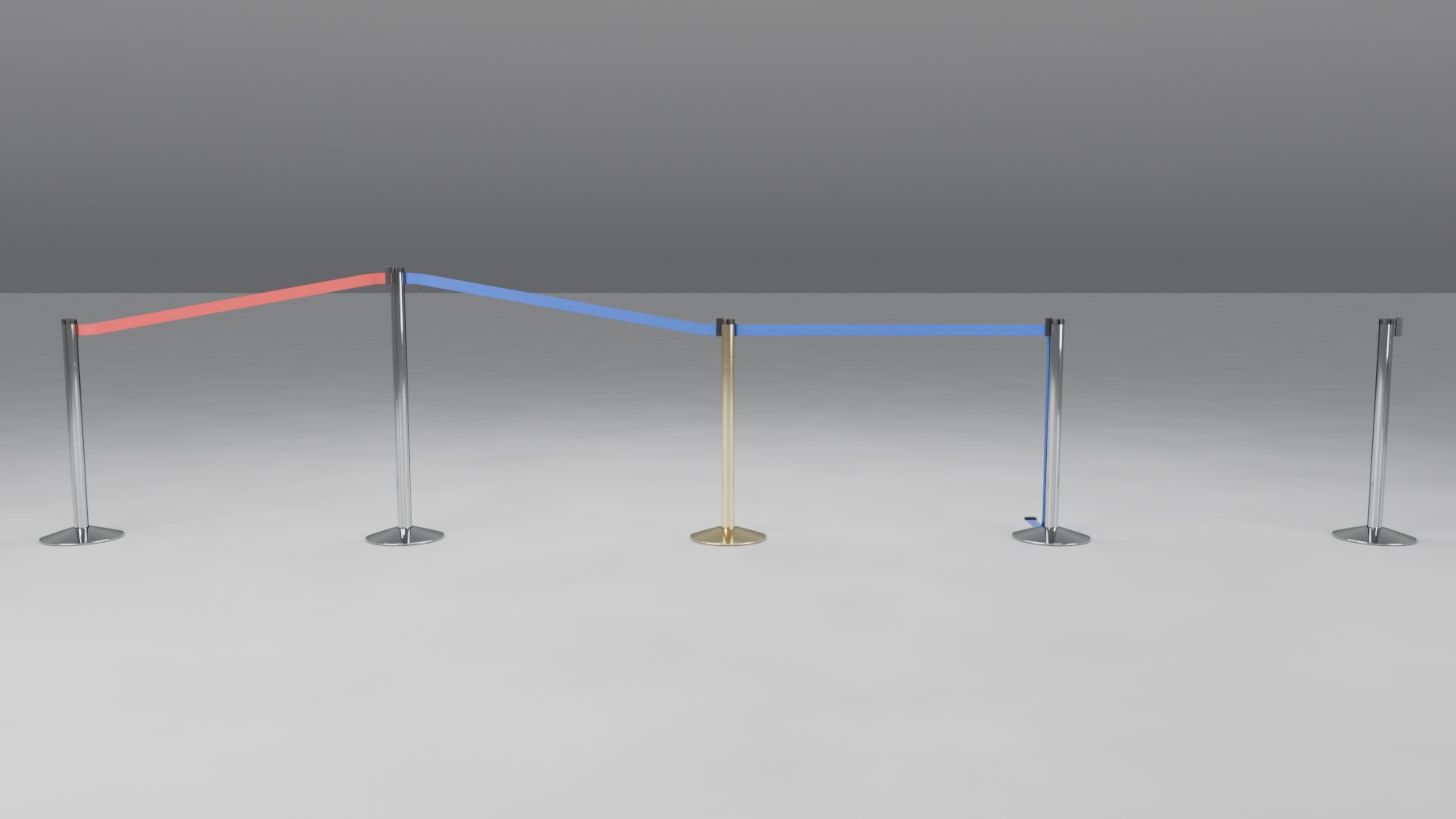
Every value can be set for the whole line, for one post or for one segment, and your changes stay when the barrier is rebuilt or when you add points elsewhere. Click a post and Selected lists its belts: Unhook one, Remove it, Hook a rope Back, or turn a chain link into a Gap. Put Back undoes any of them.
Detail sets how much the whole barrier gets. Auto picks Close-up, Standard or Far from the distance to the active camera, and Preview is what a drag shows while it runs, so a long line stays smooth under your cursor.
Measured headless on Blender 5.1: 50 posts, one vertex moved.
Walls, slopes, straight rows and square corners: what a real site does to a barrier line.
A line end can stand on a wall instead of a post, with a fitting made for the product: a receiver or a cassette for belts, a plate or a hook for ropes and chains, a bracket for beams, a flange for the Brass Bank Rail, a rail for panels. An end that would cut into a wall becomes a wall mount by itself (Auto Wall Ends), or click a wall in Draw Barrier to end the line there. Ropes and chains keep their length to the fitting, and rails and panels are cut to fit.
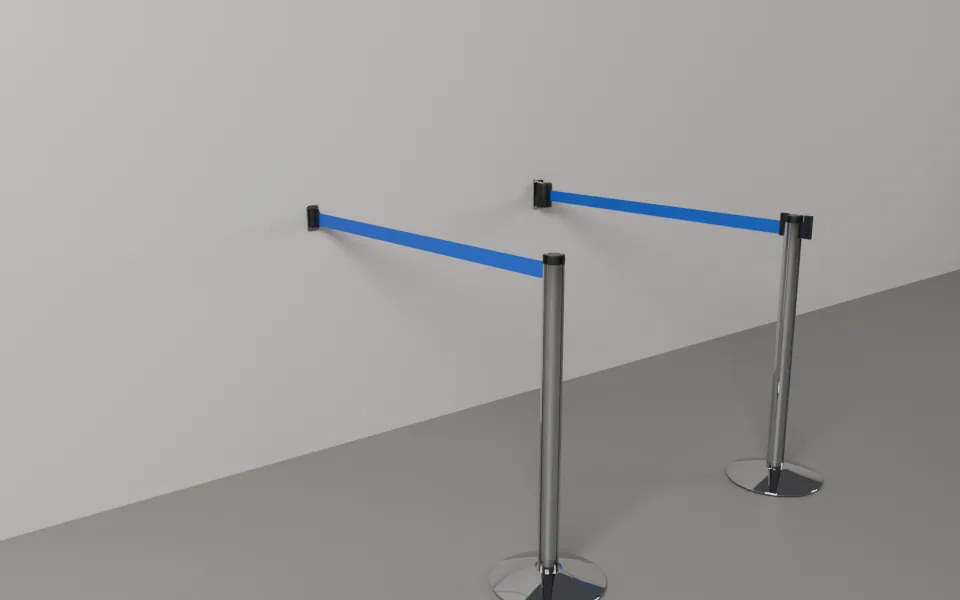 Retractable Belt Stanchion
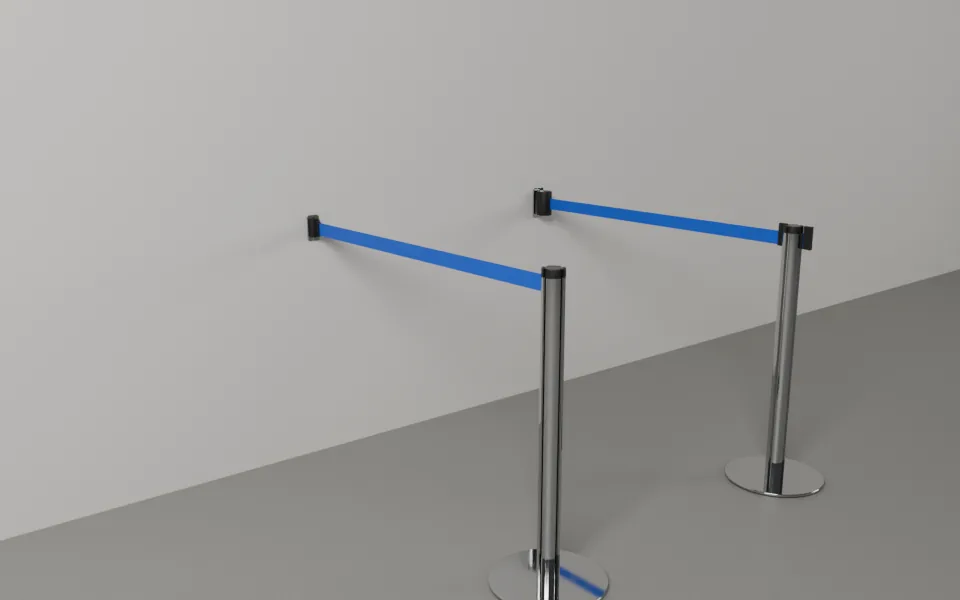 Disc Base Belt Stanchion
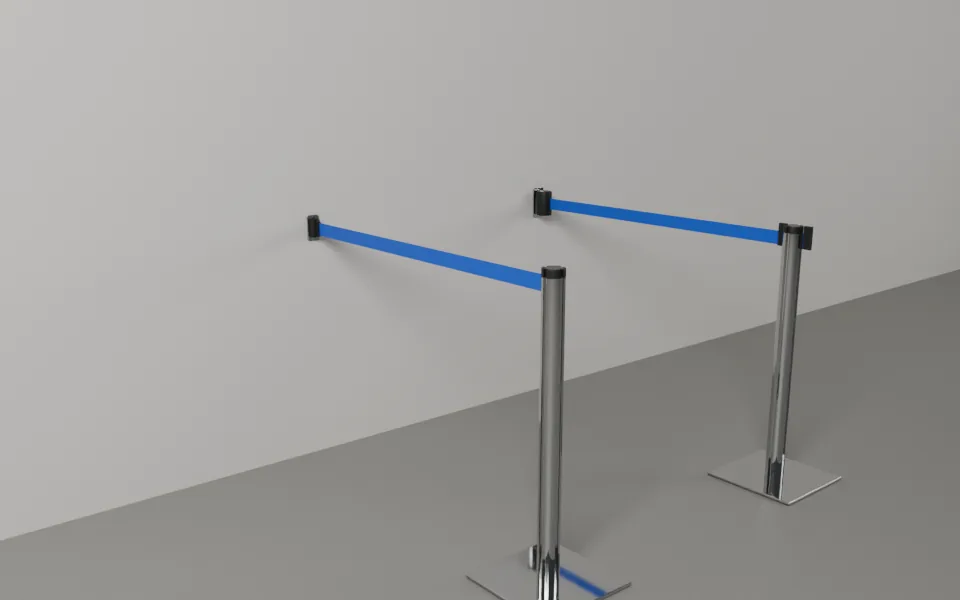 Square Base Belt Stanchion
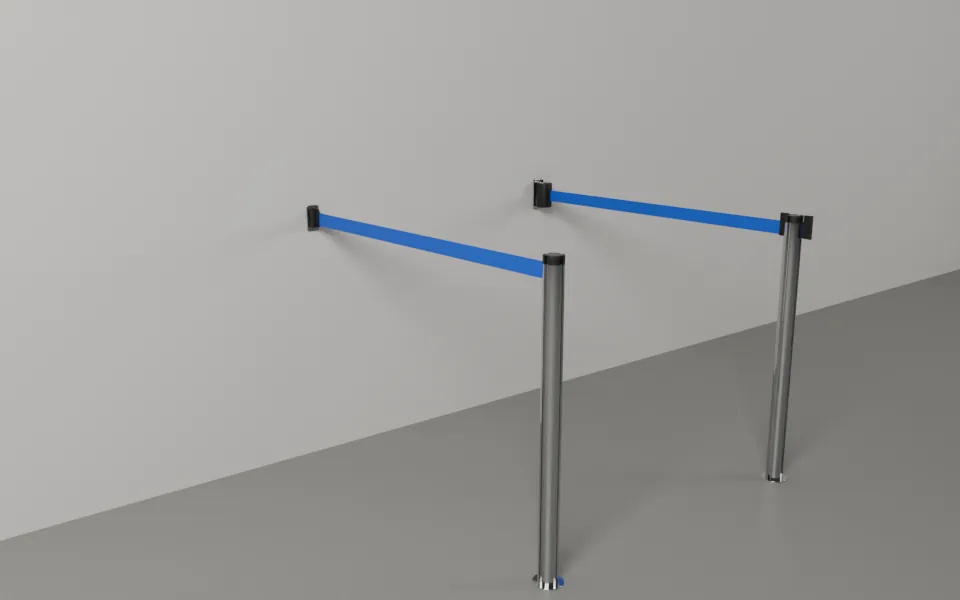 Removable Belt Post (Floor Socket)
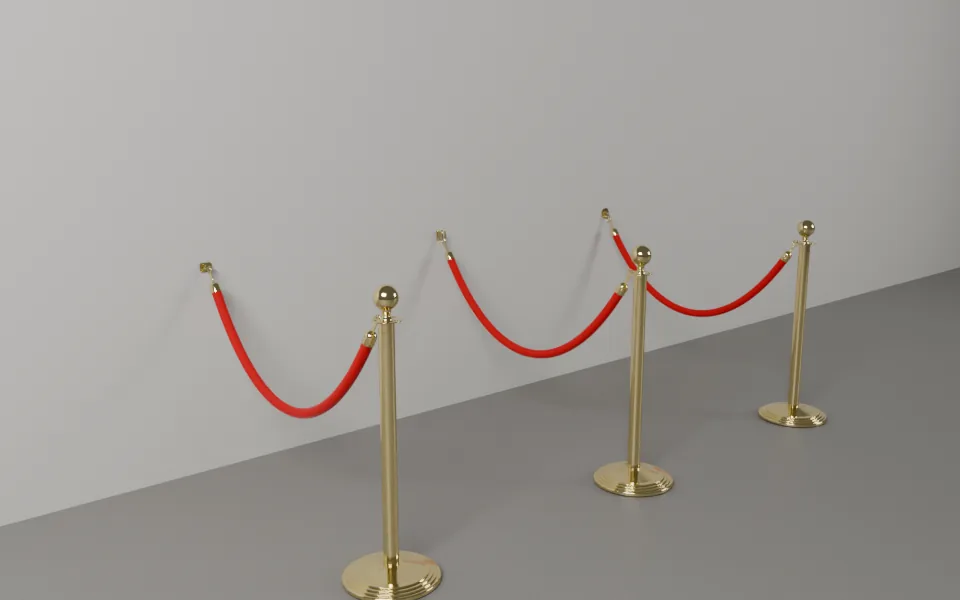 Classic Rope Stanchion
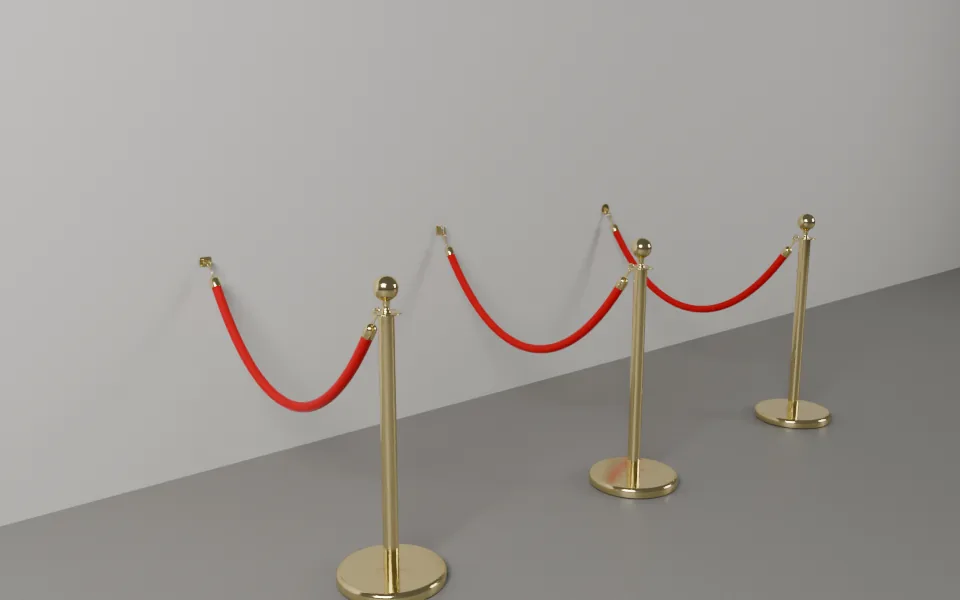 Hotel Rope Stanchion
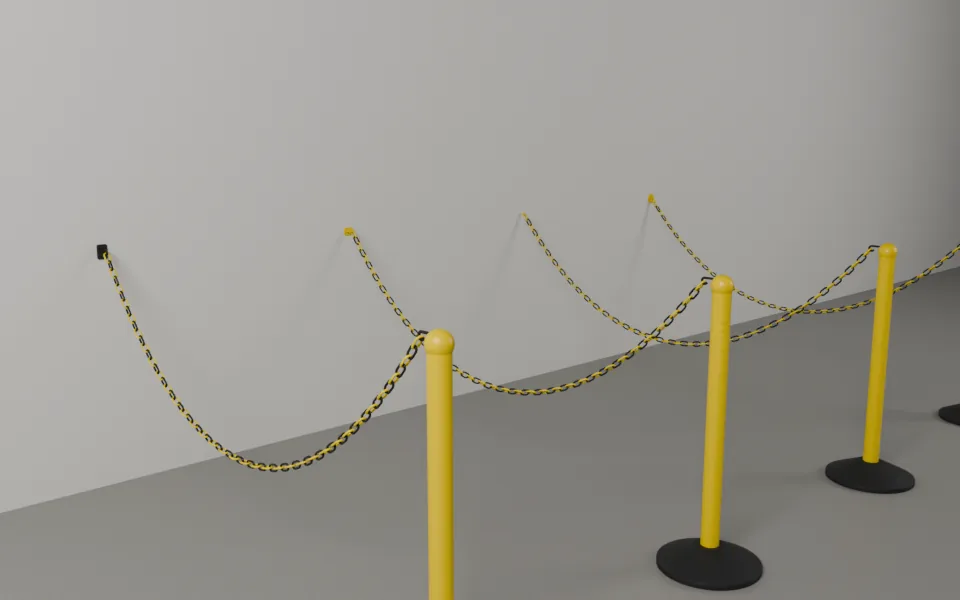 Plastic Chain Post
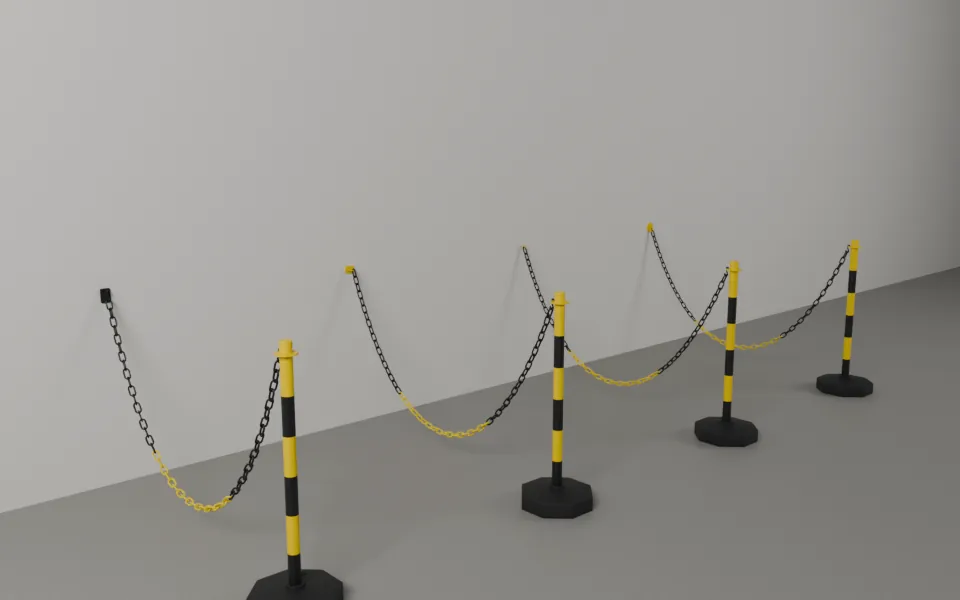 Striped Chain Post
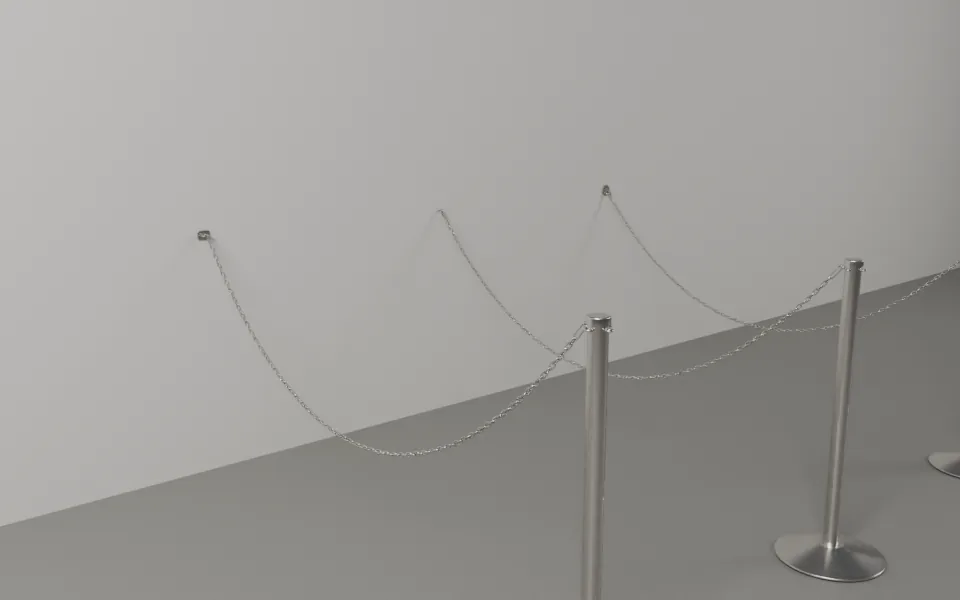 Metal Loop Chain Post
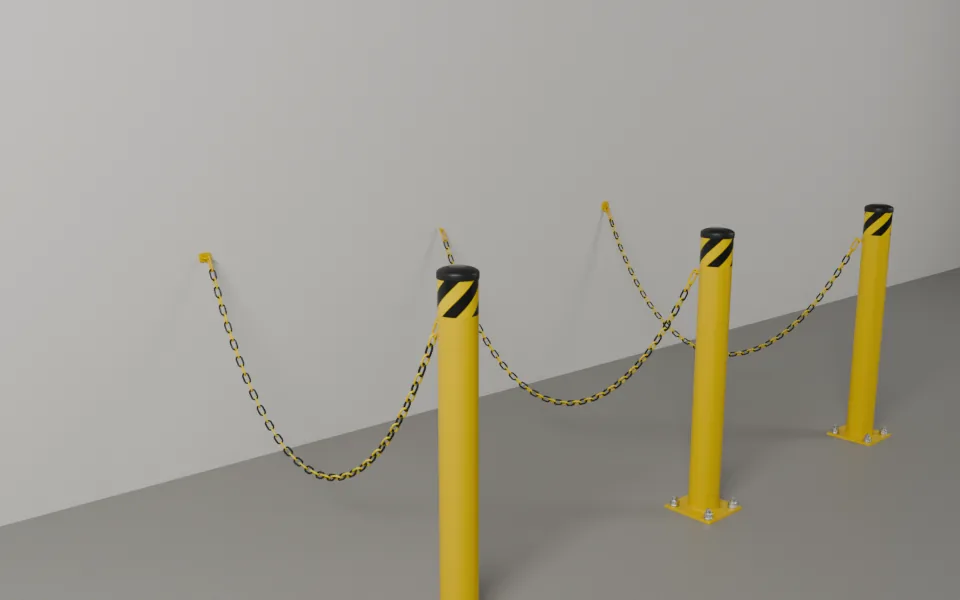 Safety Bollard
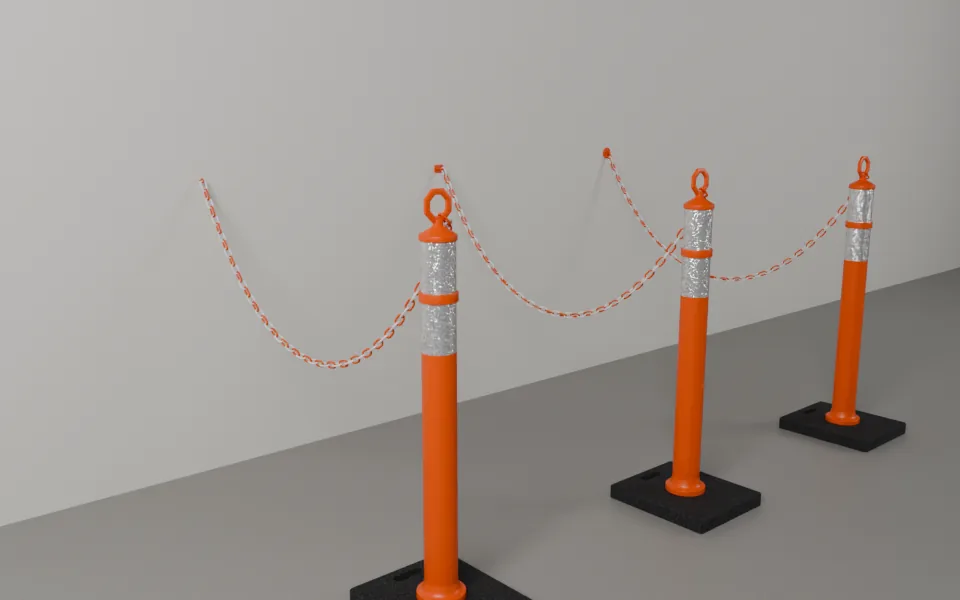 Delineator Post
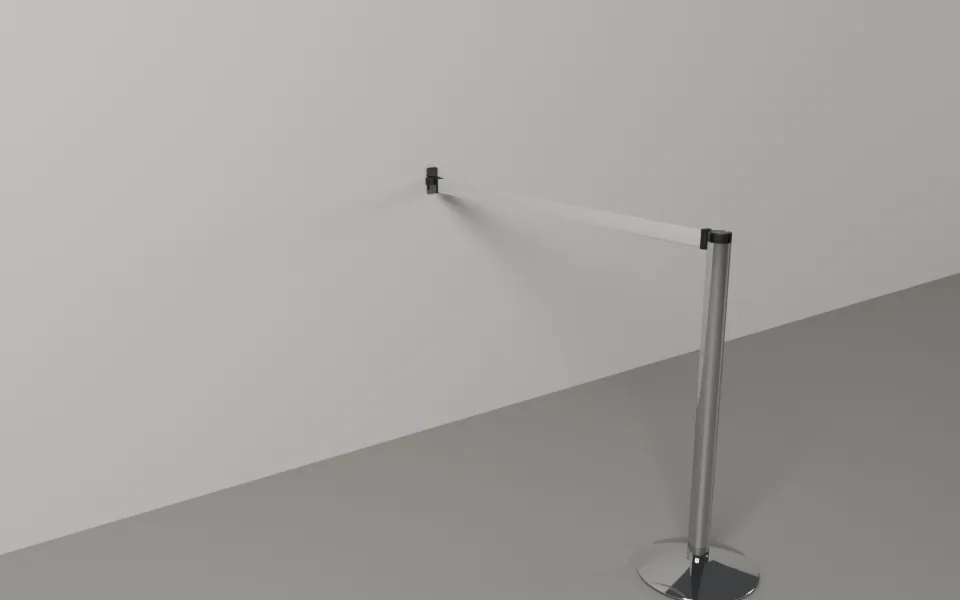 Beam Stanchion
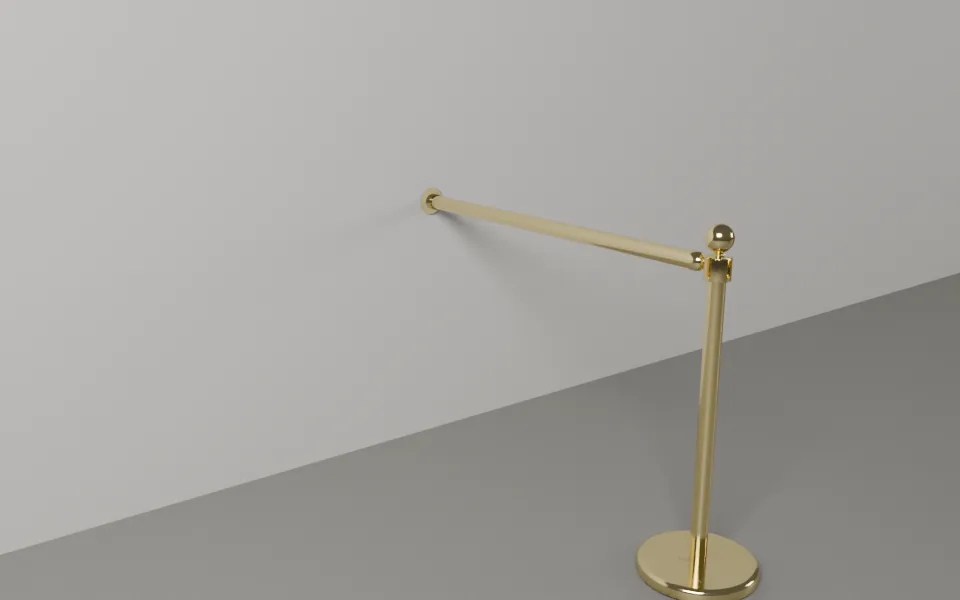 Brass Bank Rail
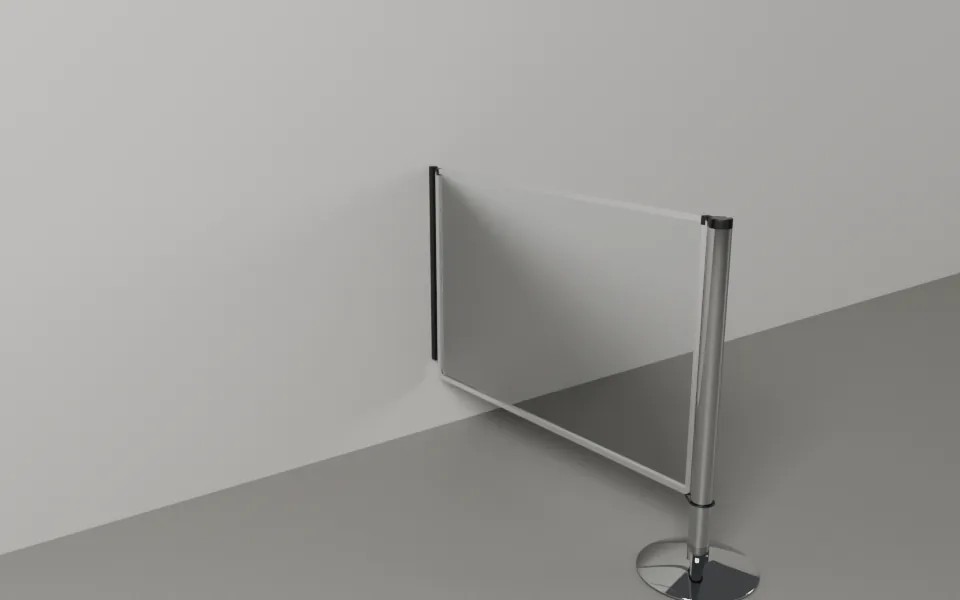 Panel Stanchion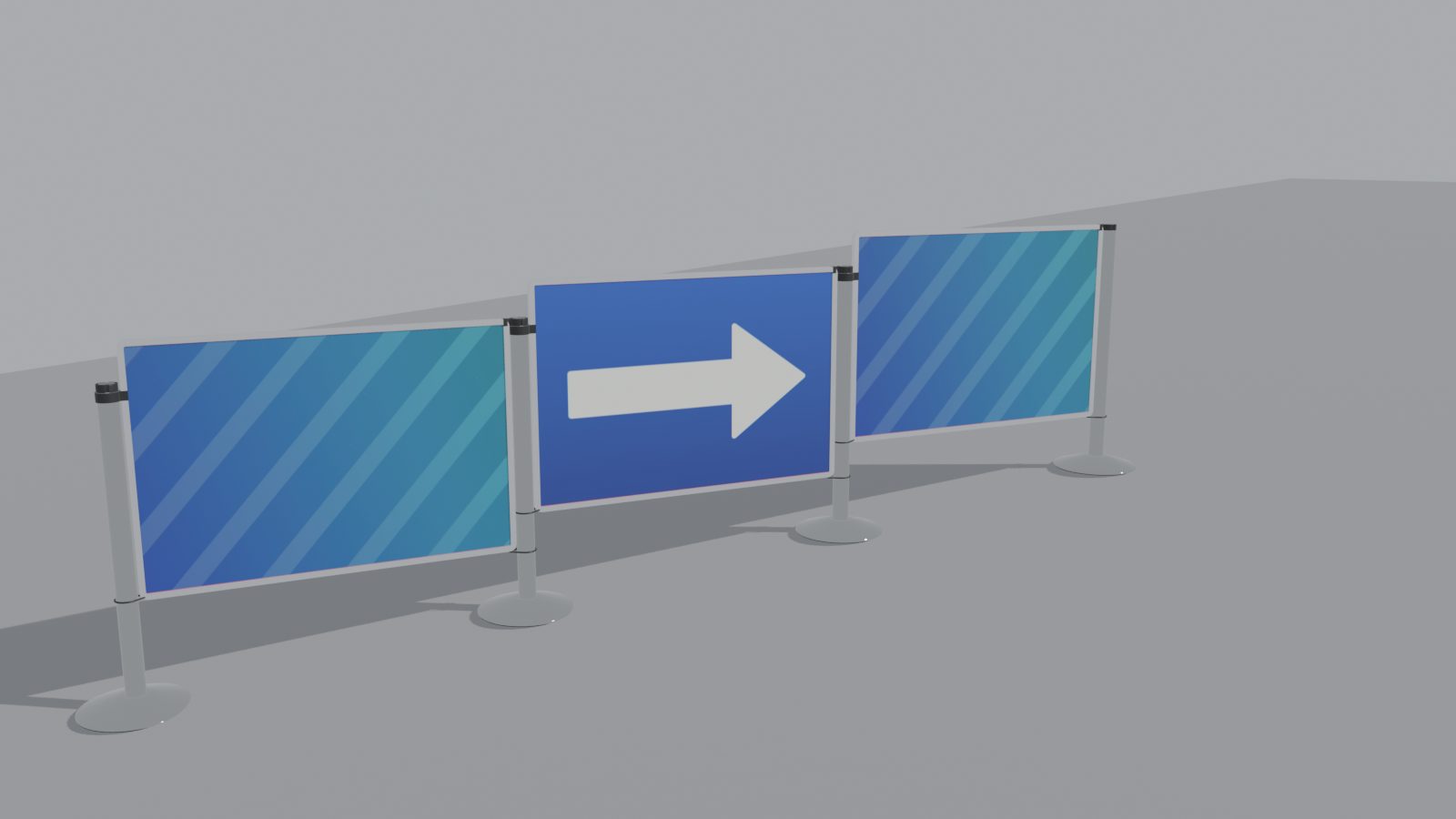
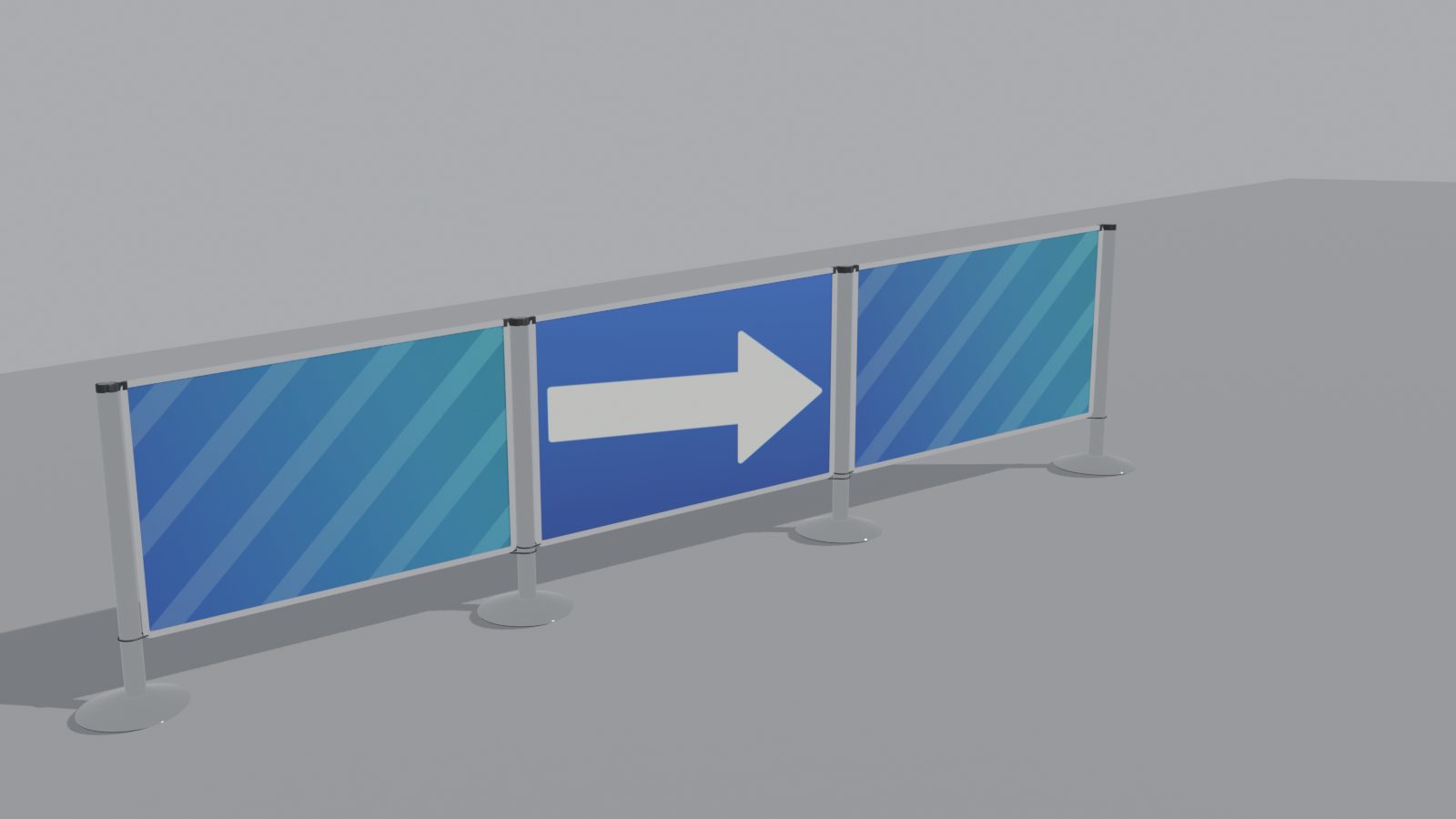
Turned panels turn between upright posts. Stepped keeps every panel level and holds it with a clamp on the lower post's tube. Shaped makes each panel to its slope, with upright sides, for permanent installs, and its print stays level or follows the slope. Set it for the line or for a single panel. Drag the slider to compare.
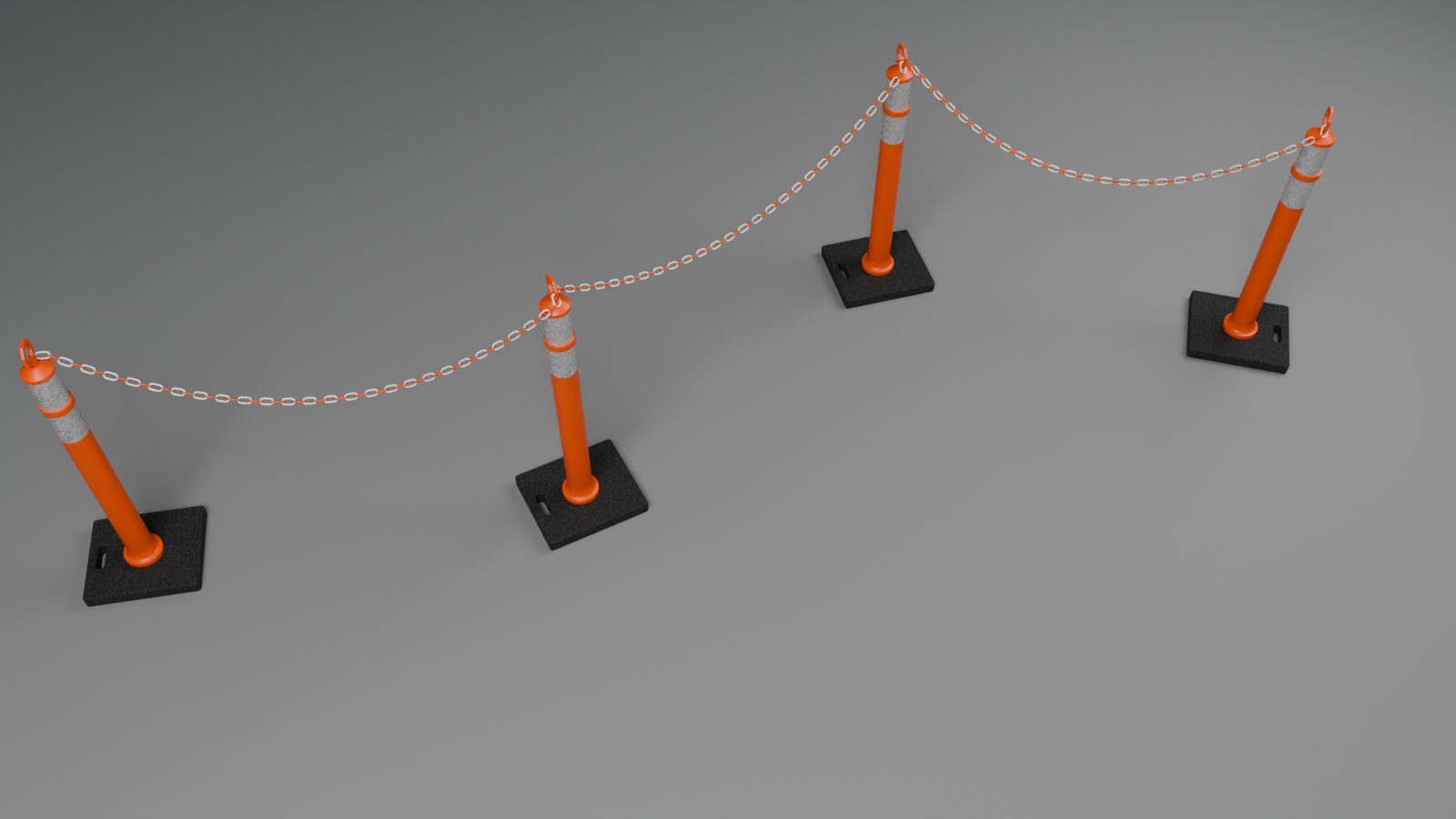
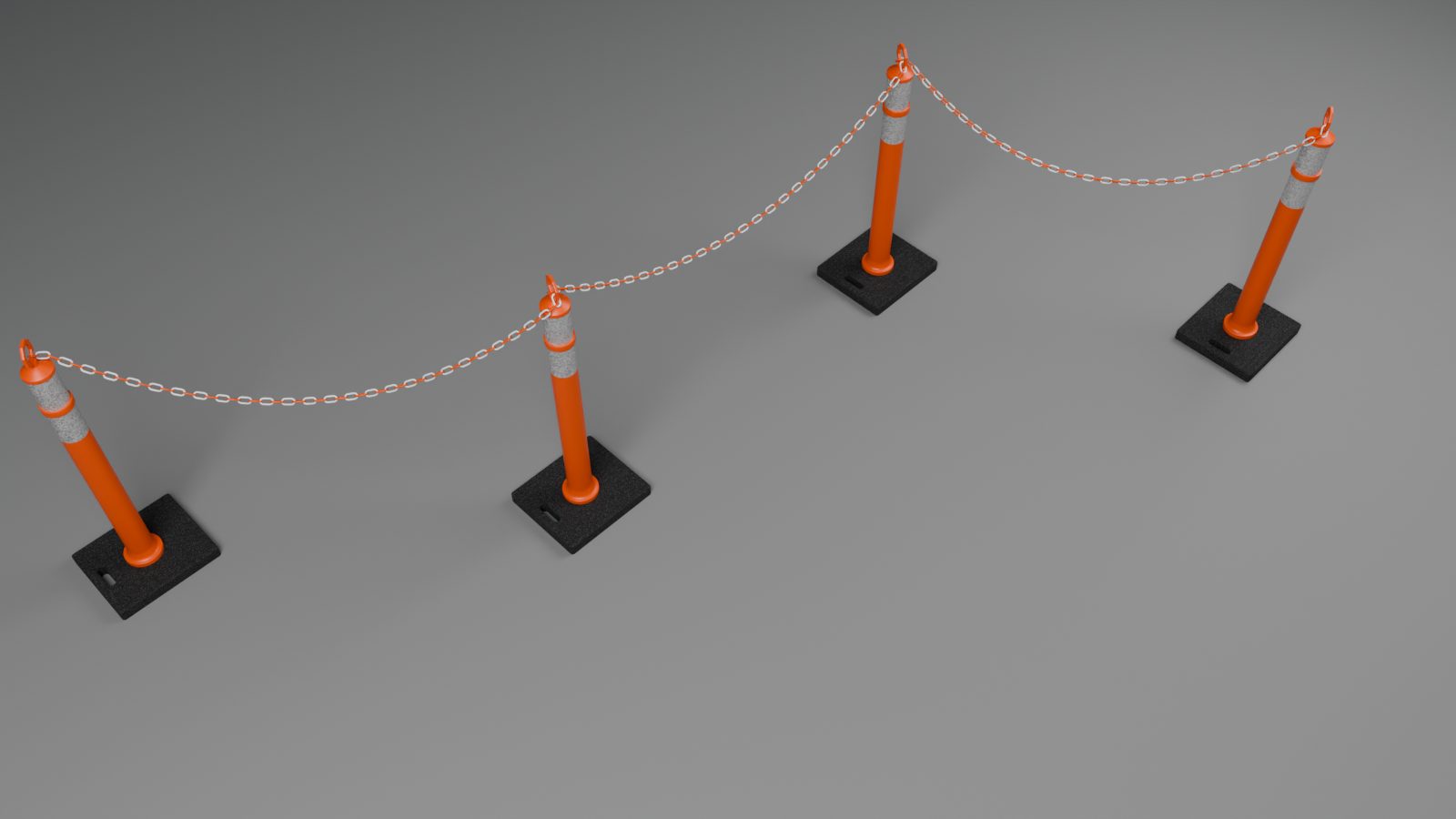
Base Alignment turns the square plates, rubber pads and octagon bases of bollards, delineators and striped chain posts: Follow Line, Aligned to Line or Aligned to World. Rings, T tops and chain hooks keep their facing, so chains hang as before.
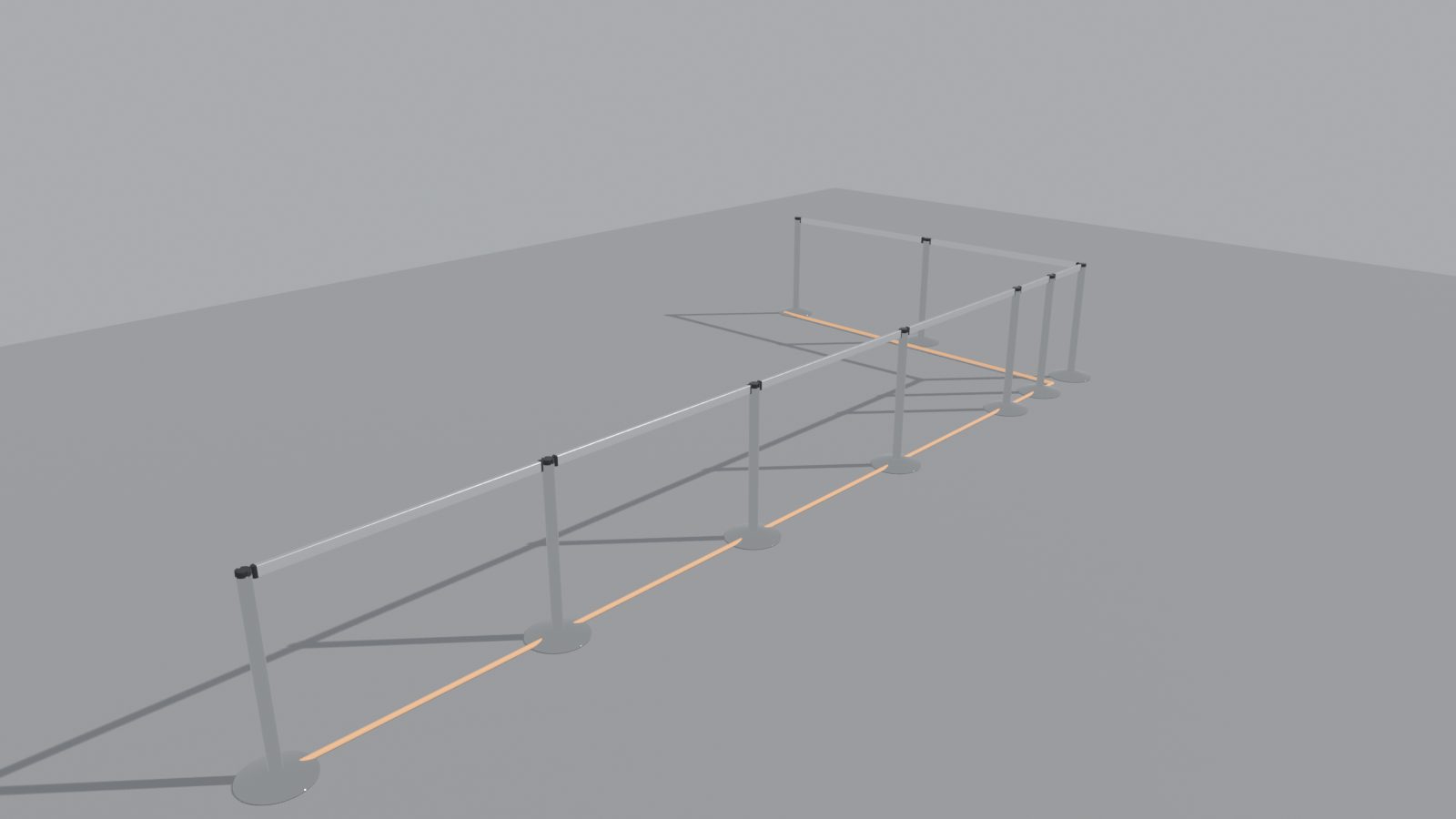
Right Angles Only builds the simplest square path: every turn is exactly 90 degrees and your points are its guides. Draw Barrier shows the squared line as you click. Fixed Lengths builds rails and panels in whole pieces of your own lengths, the long ones first, and the Report counts each length.
Real finishes, wear you dial in, and images that print the right way round.
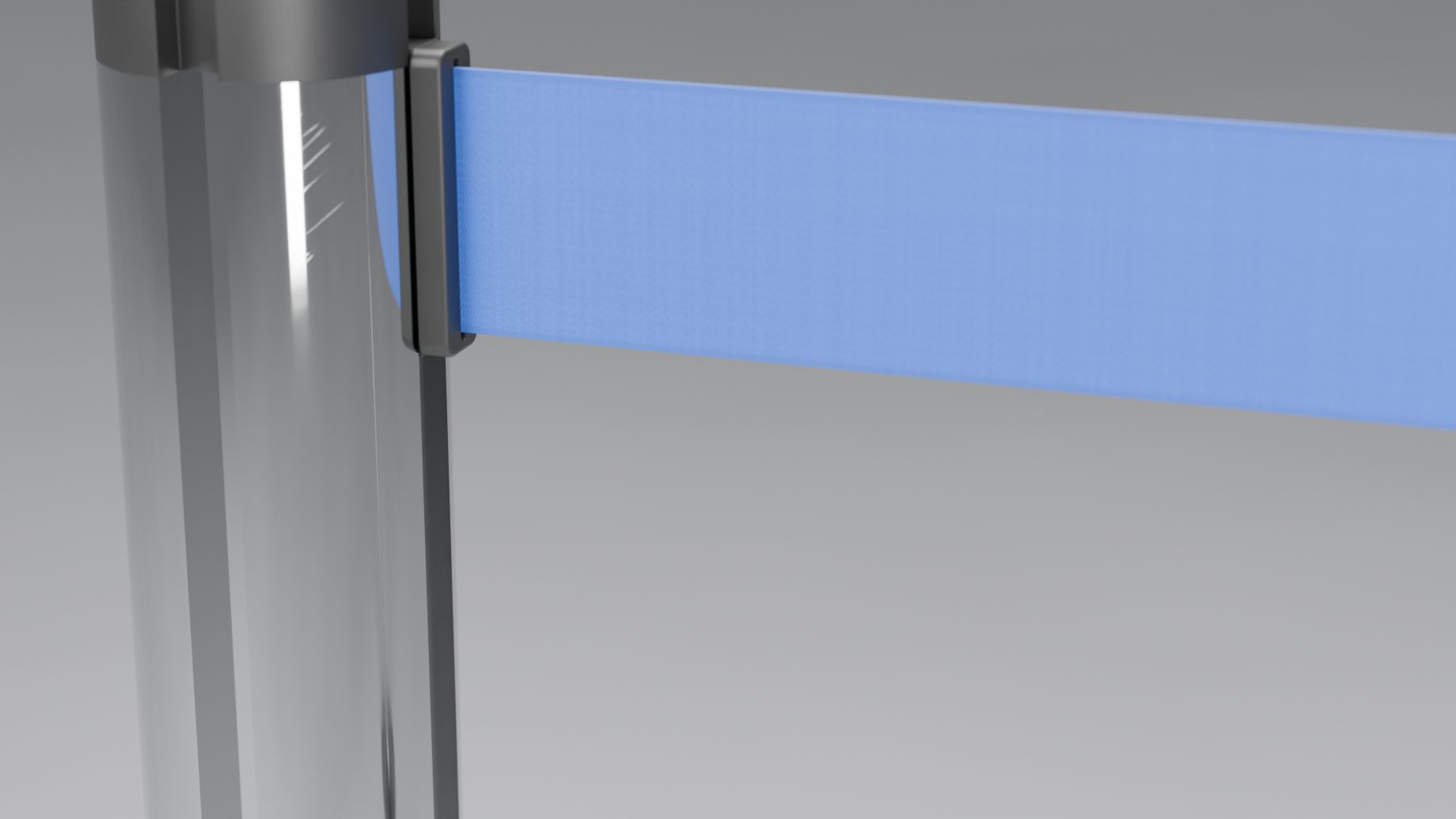
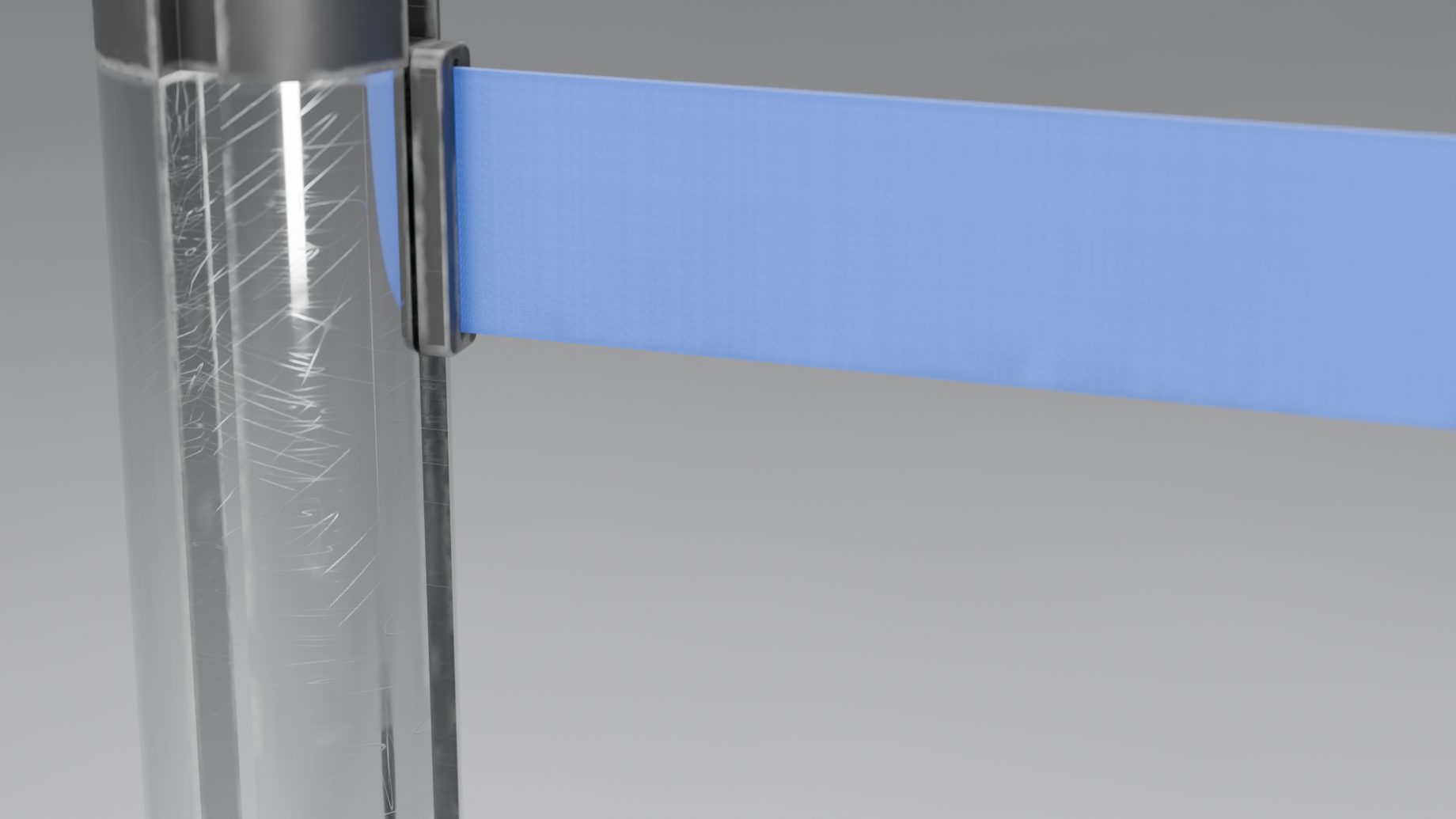
Finishes such as polished chrome, brass, satin stainless and black powder coat, a woven belt, and wear you dial in: Wear, Edge Wear, Stains, Stain Size and Tarnish. Or give any part your own material. Drag the slider to compare.
Four image libraries come with the add-on, each a click away in a popup: belt logos, cap stickers, panel images and sign designs. Or load your own files and choose whether they are packed into the .blend or linked. Logos read the right way round from both sides of the belt.
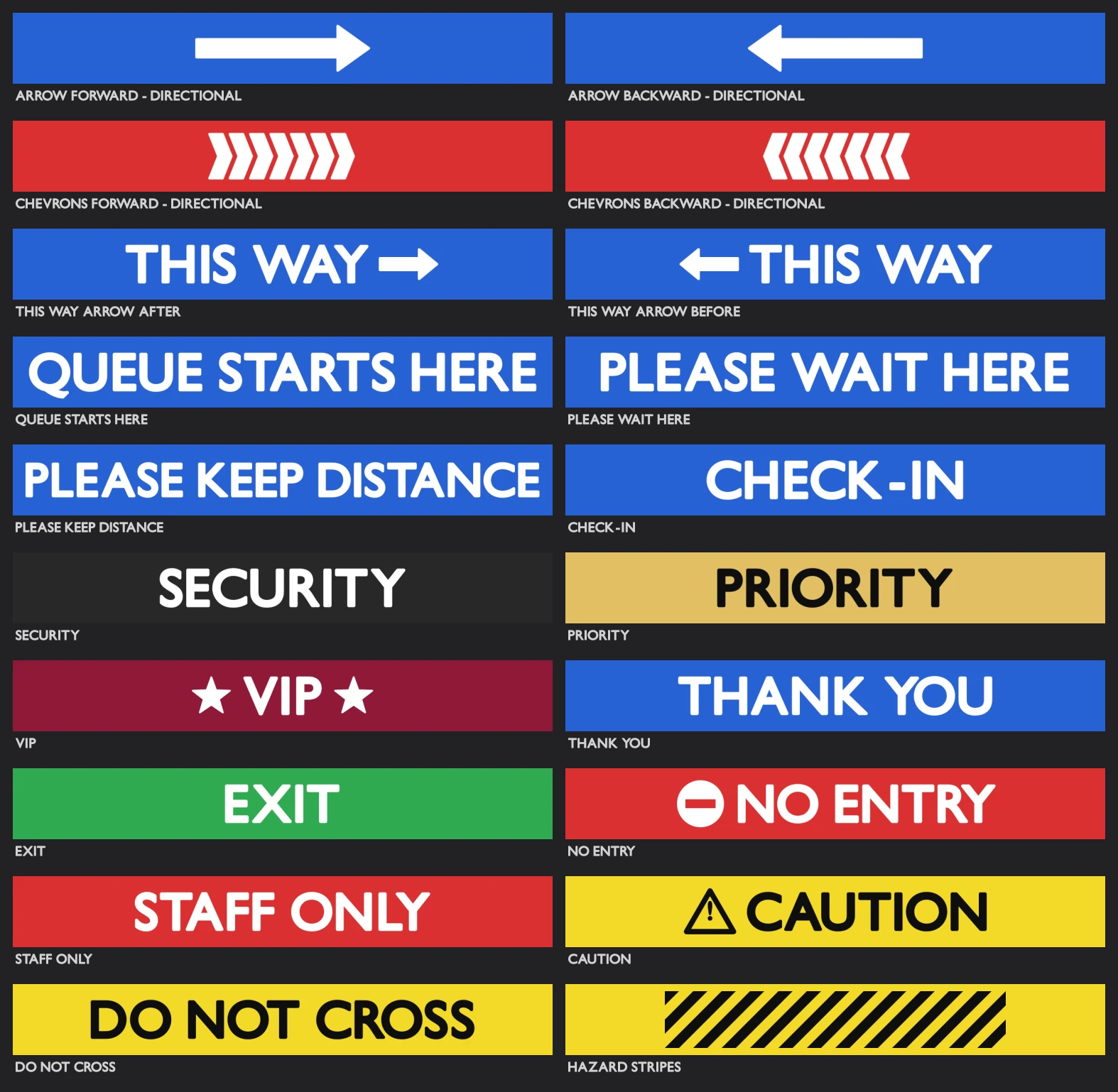 20 belt logos
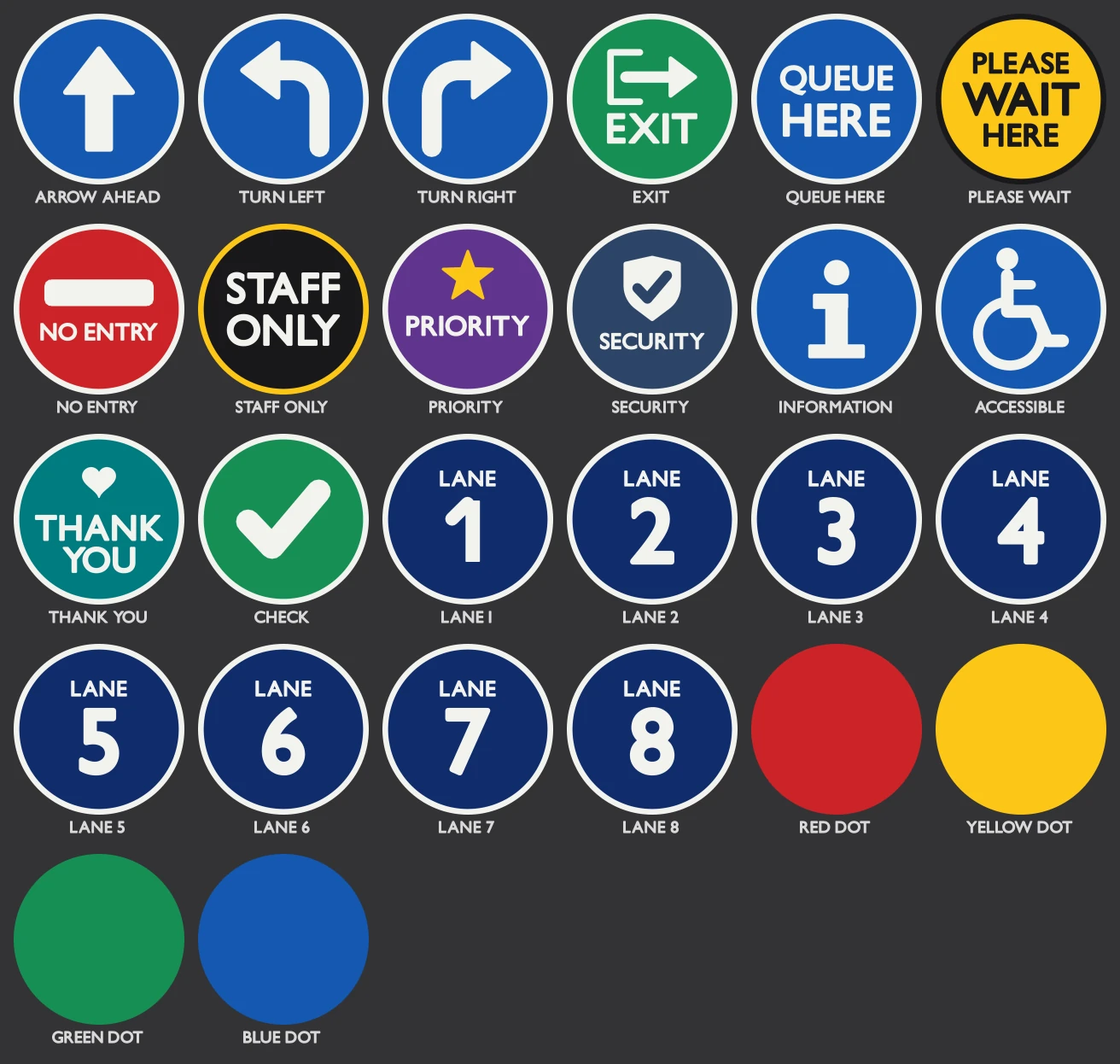 26 cap stickers
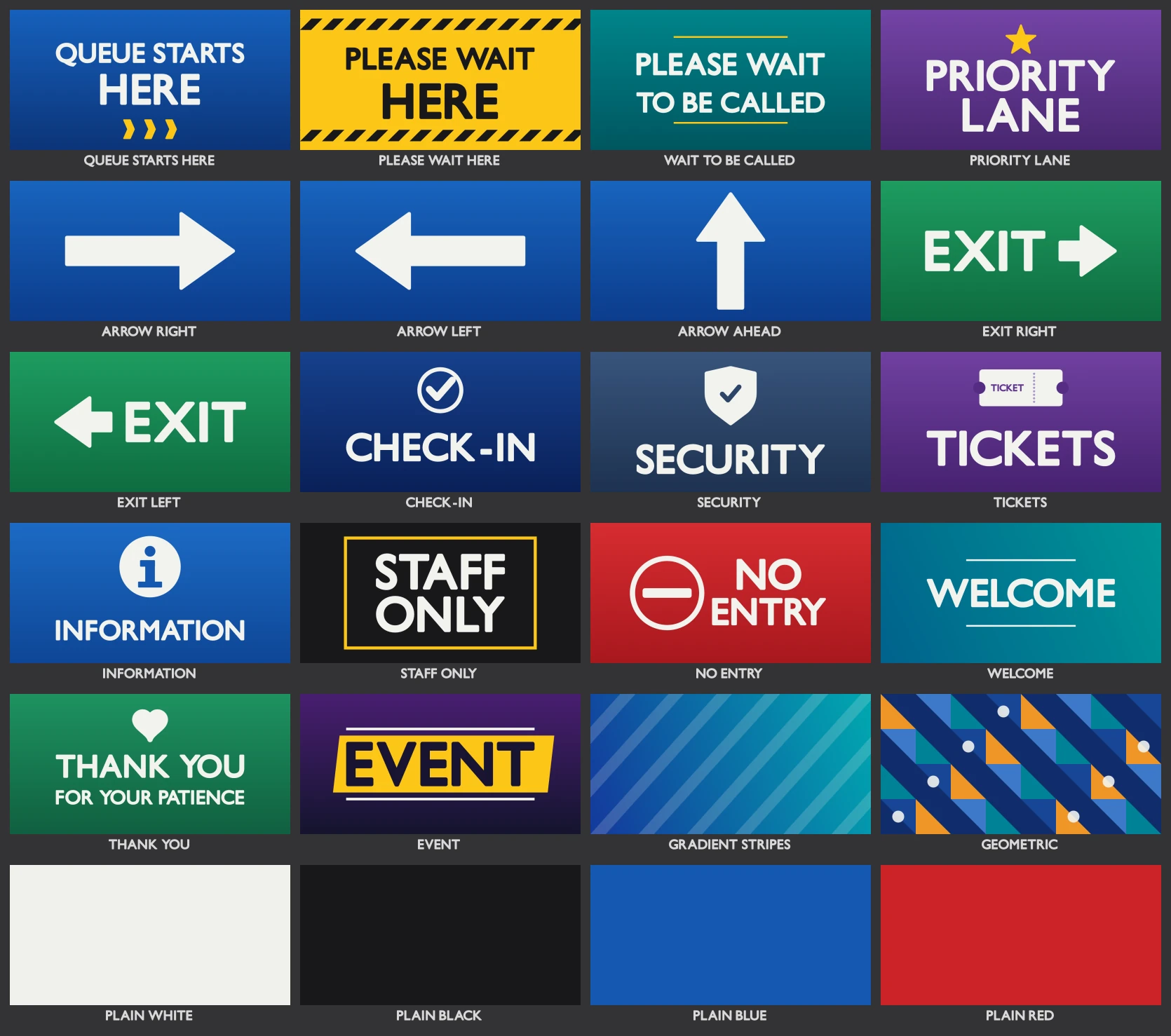 24 panel images
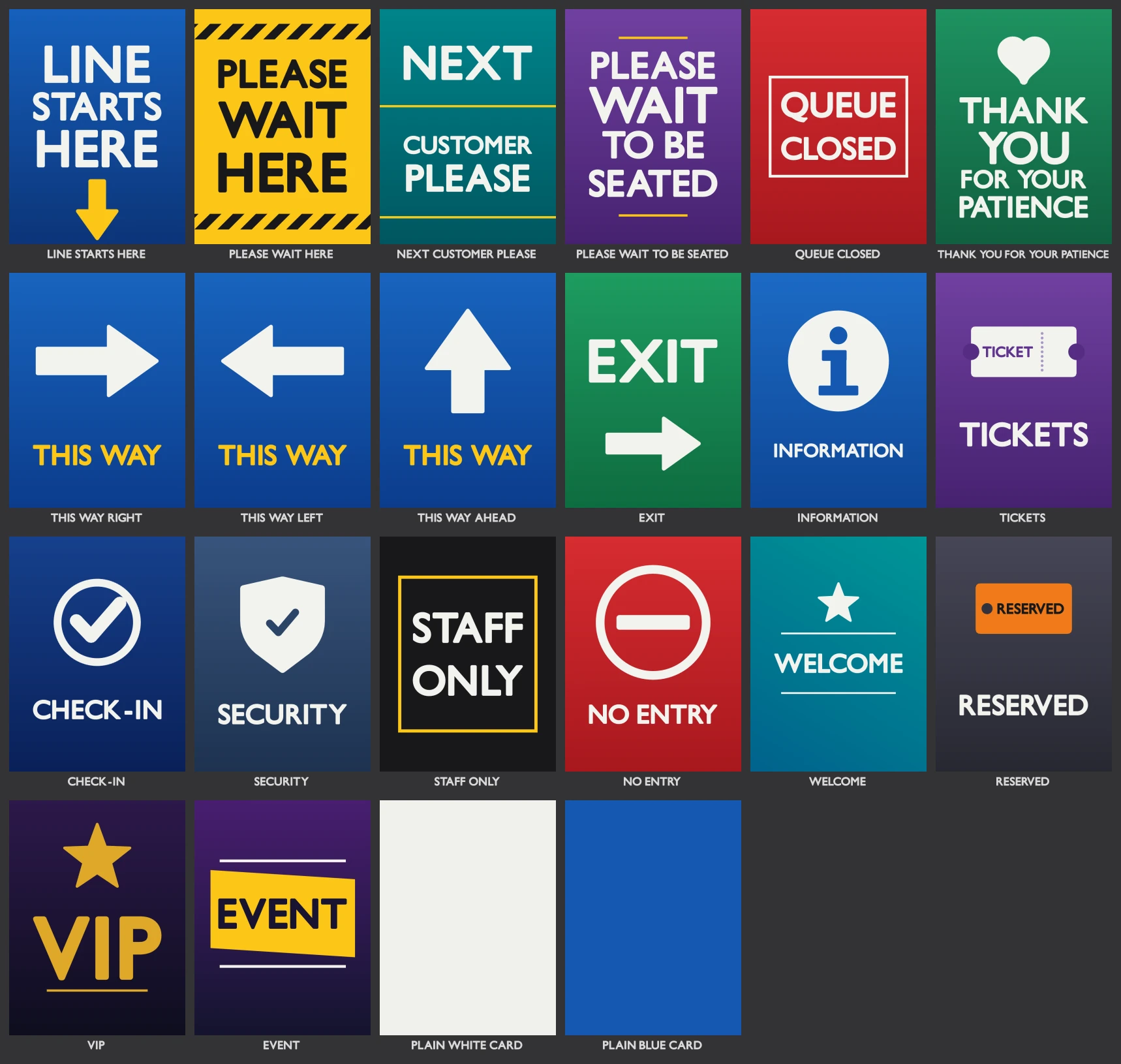 22 sign designs
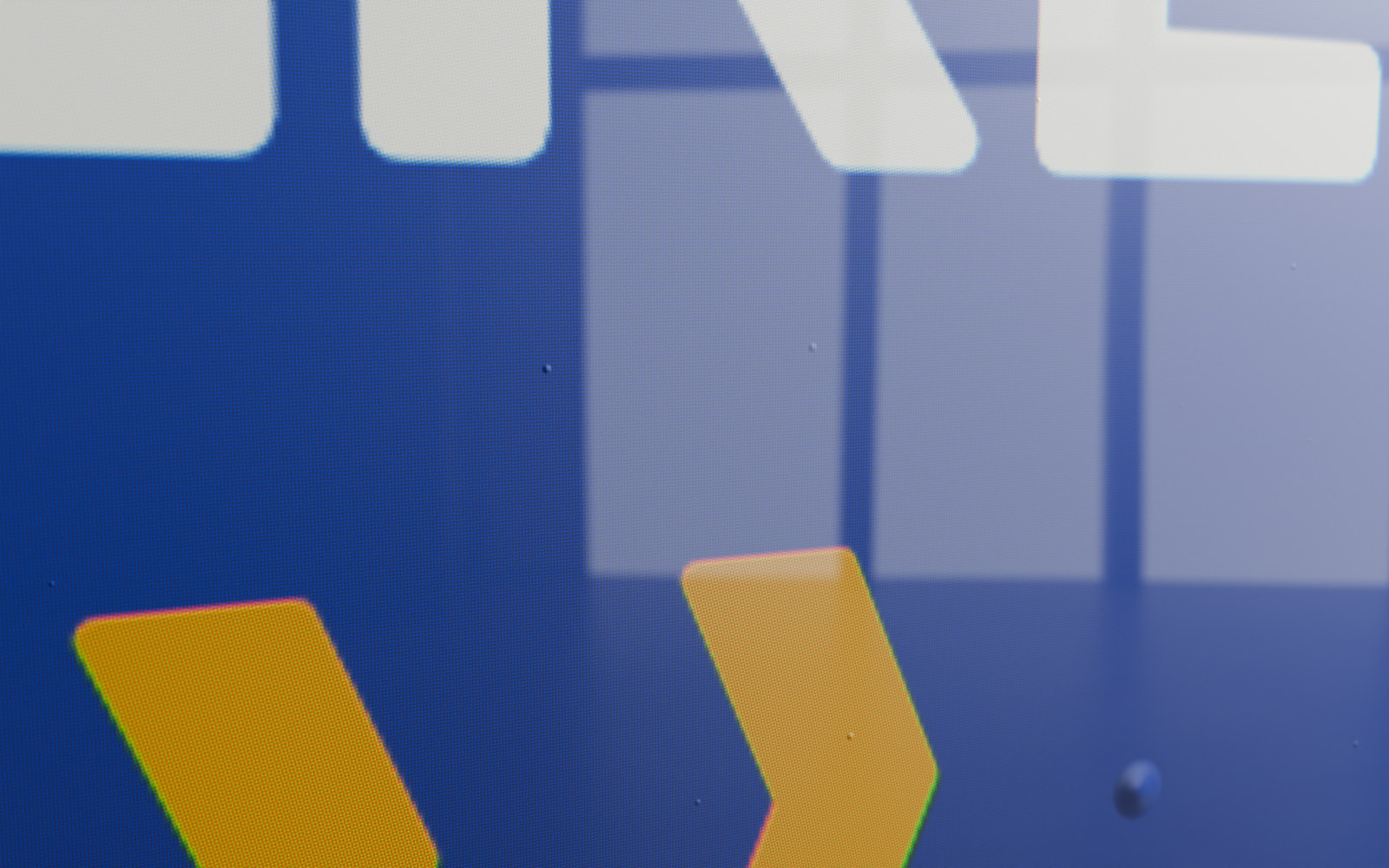
A printed panel insert looks like a print behind acrylic: a glass reflection, slight waviness, air bubbles, print dots, colour fringes and optional pixelation. The bubbles are only a surface effect, small raised blisters that catch the light and never turn the print pale. It follows the Detail level and has a master switch. Drag the slider: the same insert from 24 cm, at Detail Close-up.
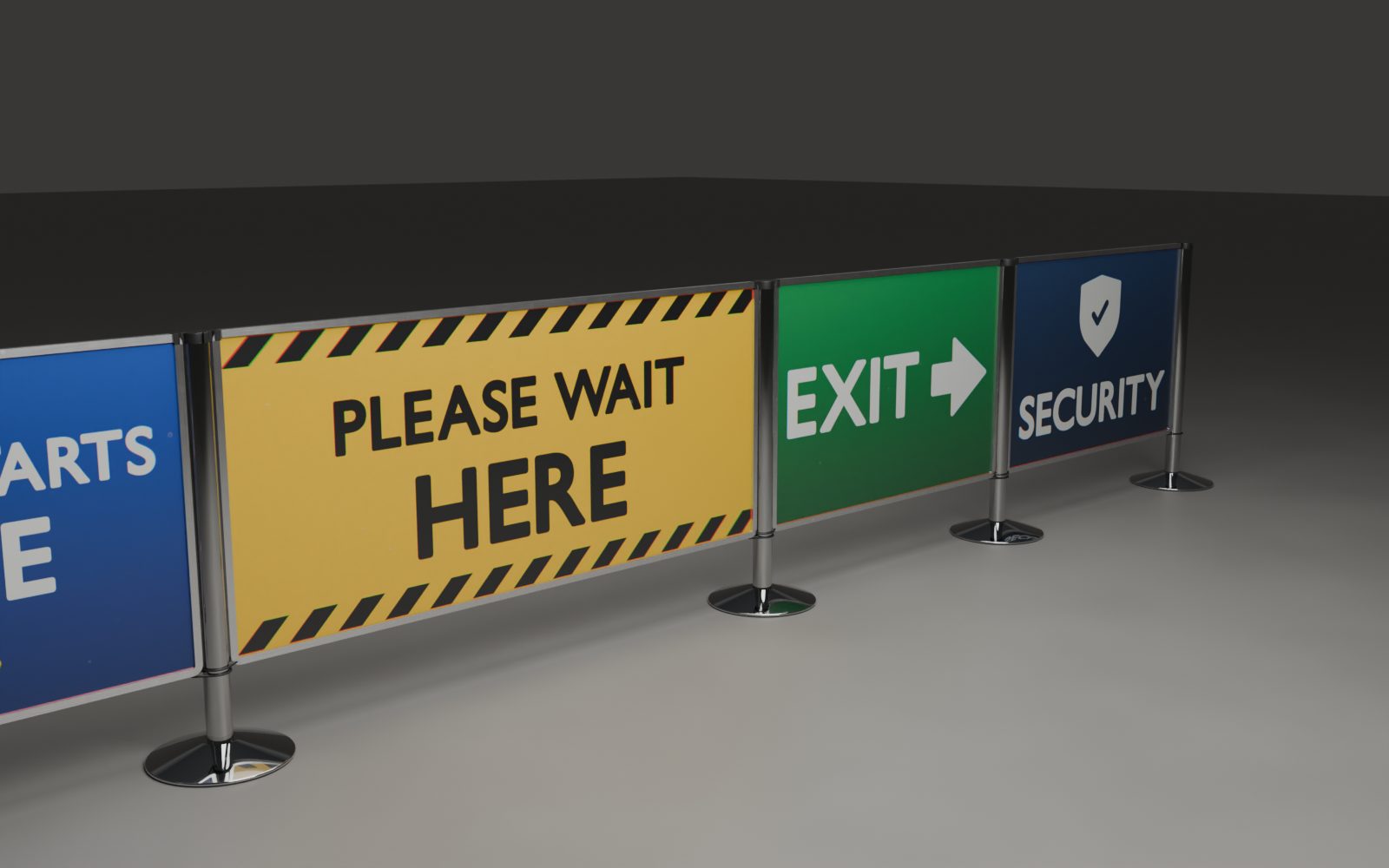
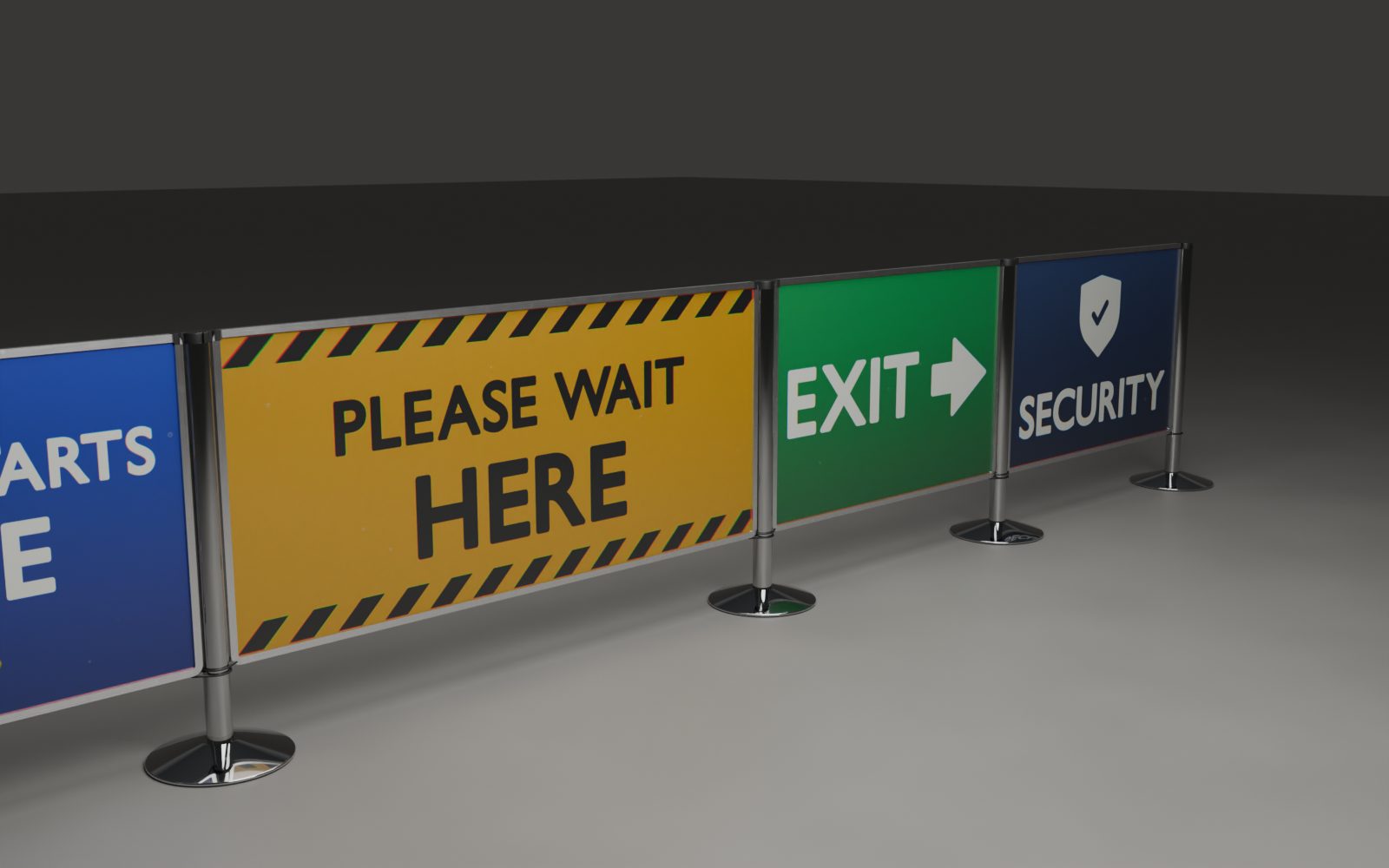
Under AgX, cap stickers, panel prints, belt logos and sign prints are pre-compensated so they read like their source images. Auto is the default for new barriers. Drag the slider to compare.
A whole queue from a rectangle, and the signs that go with it.
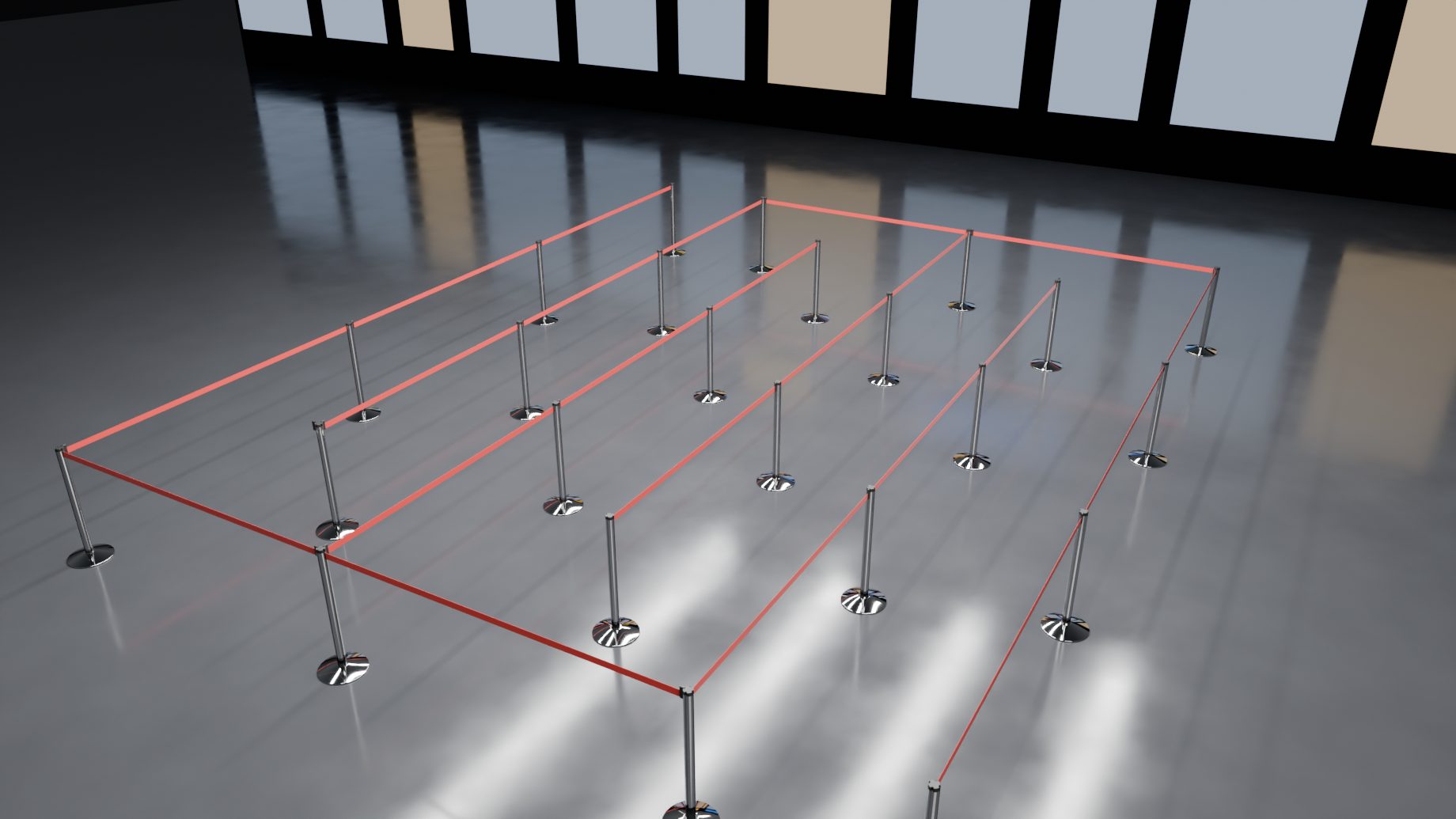
Make Queue turns a rectangle into a serpentine queue of posts and belts, and Draw Queue lets you drag the rectangle on the floor. Set Length, Width, Lanes and the lane, turn, entry and exit widths, then move a vertex of the source to move an opening. A line end can stand on the nearest wall.
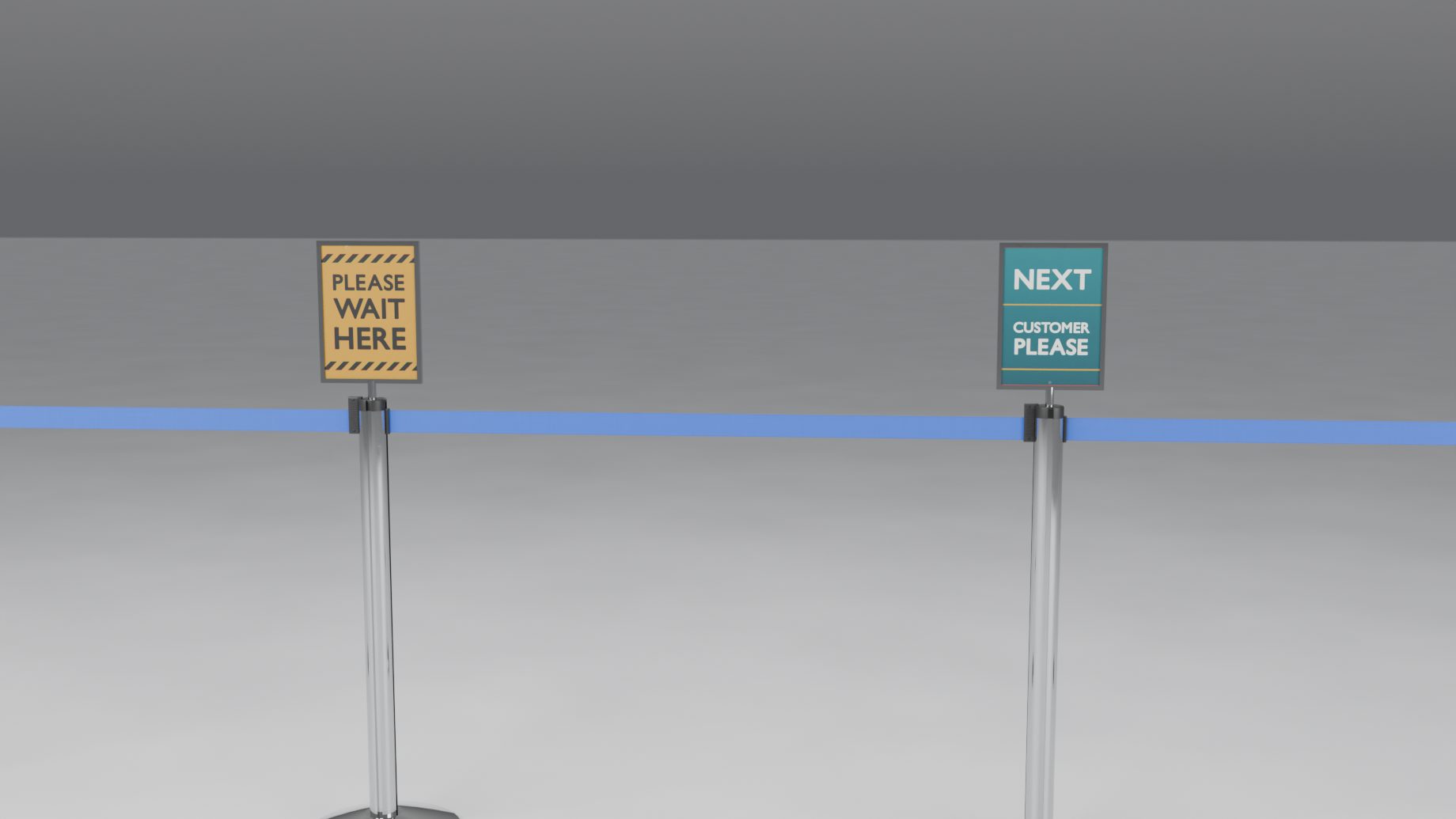
Hang a sign frame on a post: A4, Letter, 11 by 17 inches or your own size, landscape or portrait, double-sided, tilted and turned as you like. Print it from the sign library or your own image, with the same fit modes, Print Realism and Print Colours as a panel.
A museum rope line, a car park, a panel line and the libraries, all from curves.
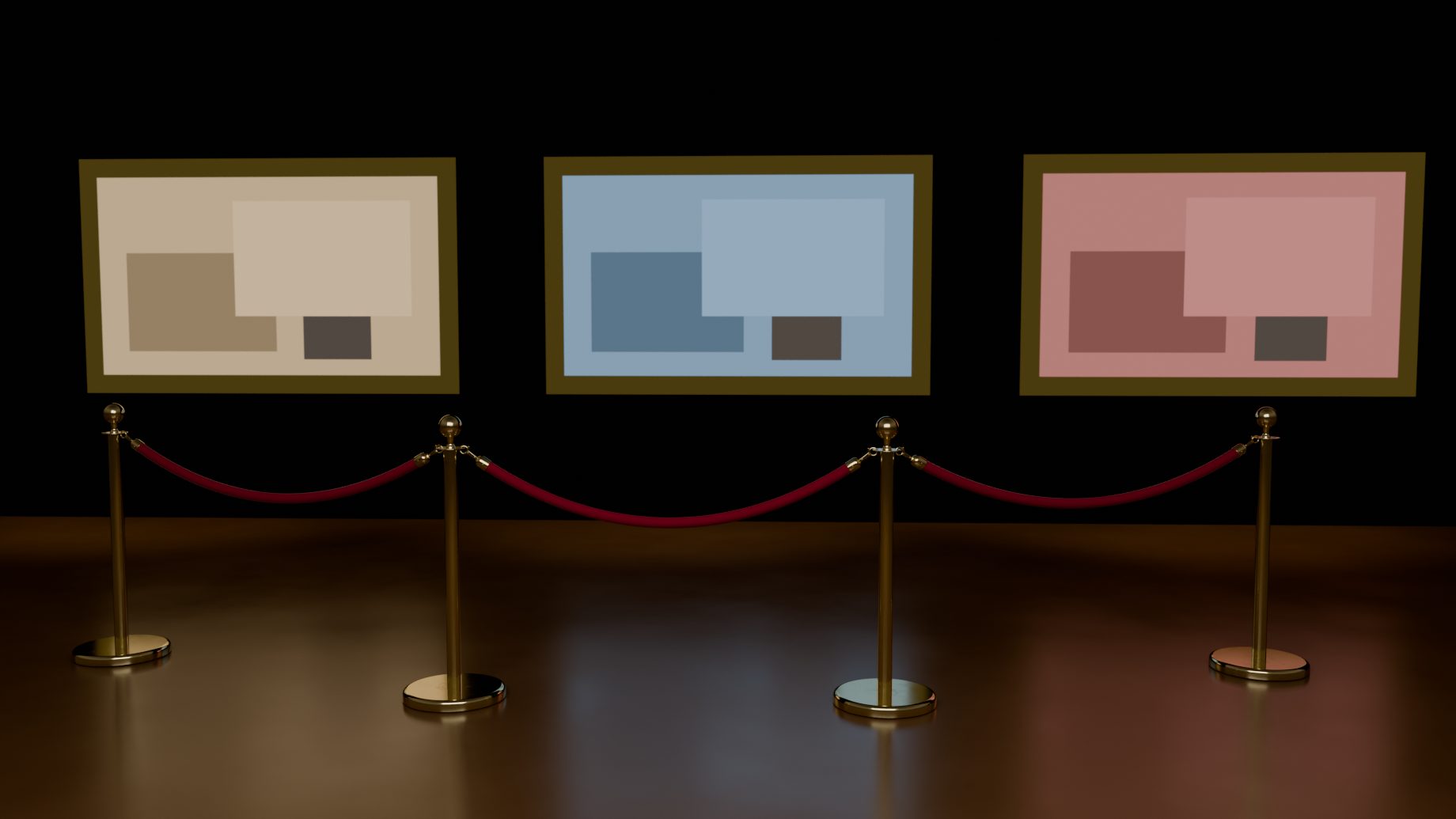
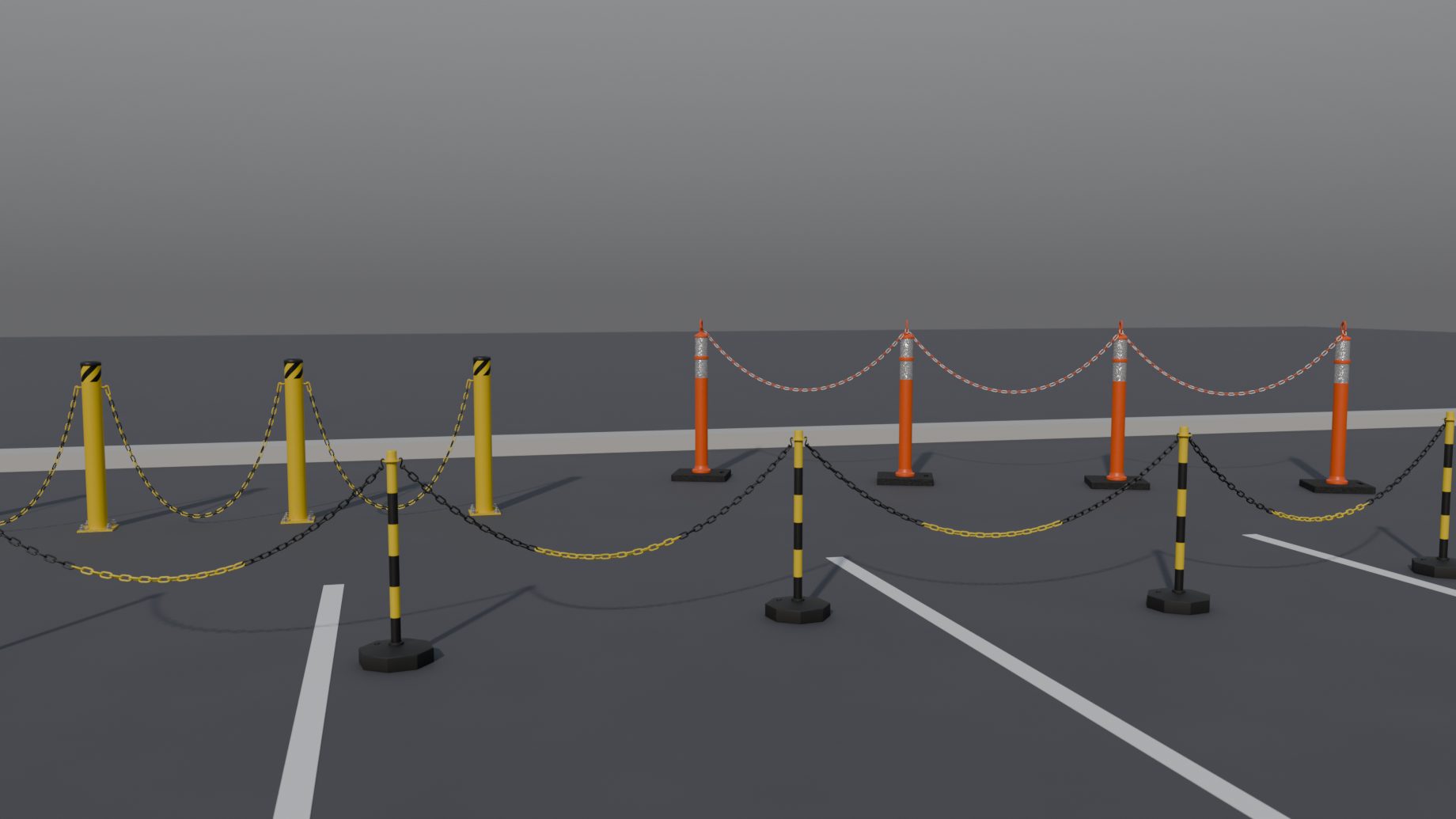
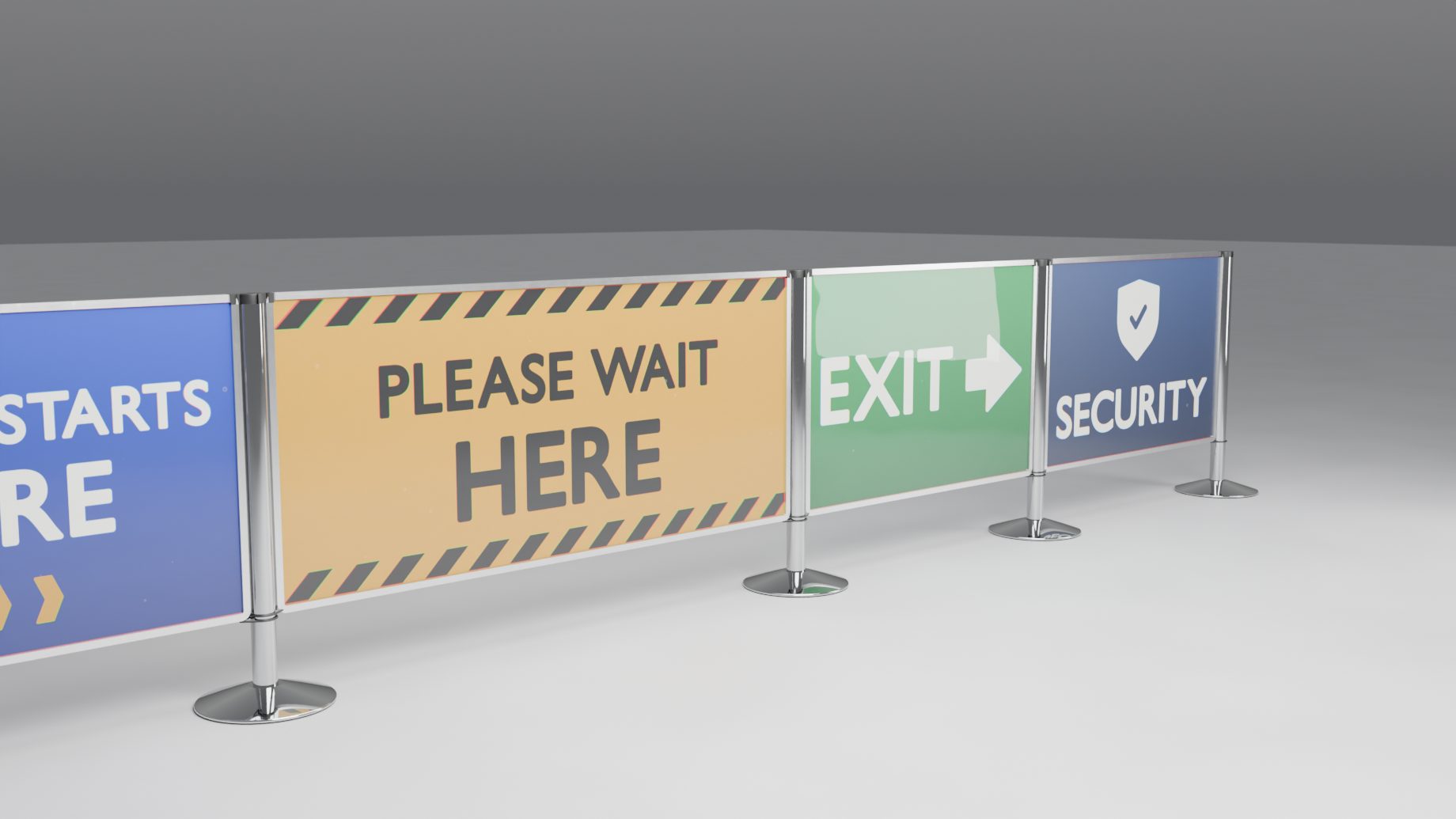
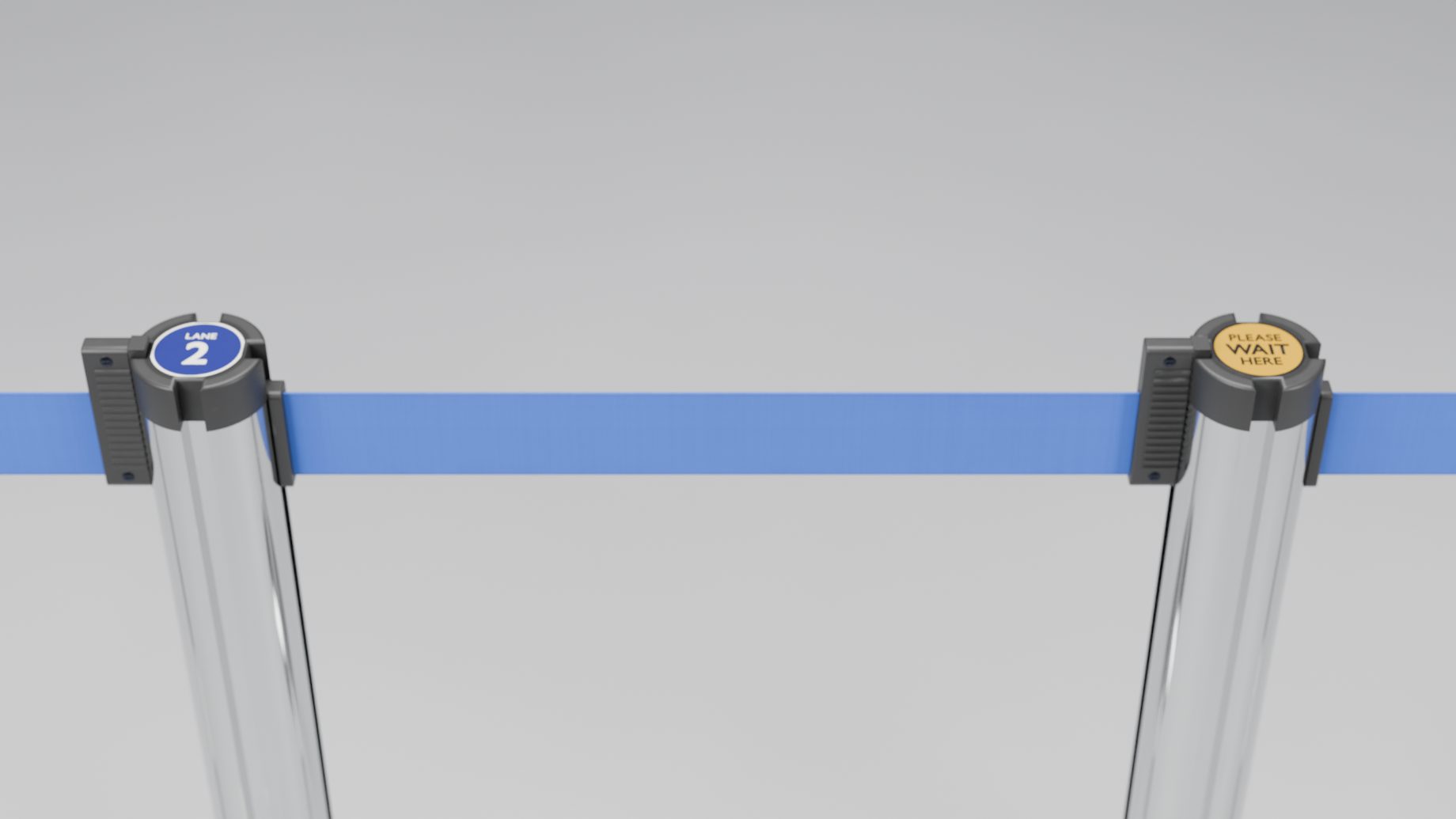
One system at a time, each a free update.
Traffic cones as a row, barrier tape tied between cones, posts, poles or walls, cones joined by chains and cone bars.
Steel crowd barriers and plastic pedestrian barriers on feet, laid end to end with joints, and printed covers for both.
Water-filled barriers, the low airport barricade, temporary mesh fence panels with printed covers, road-closure barricades, drums and vertical panels.
Pipe and drape, front-of-stage barriers, expanding barriers, cable museum barriers, queue swing gates and A-frame sign boards.
Plans, not promises: the order and the contents can change. Every update is free for everyone who has bought Queue & Barrier Pro. Permanent fences, walls and gates are planned as a separate add-on.
Add a curve (or a mesh line), leave it active, press Shift+A > Barrier and pick a product. A post stands on every point and a belt, rope, chain, rail or panel joins them. To place posts by clicking, use Draw Barrier: each post stops where the next belt would be too long.
Blender 5.1 or newer. The add-on installs as a Blender extension, and everything it needs is in the zip: no other add-ons and no extra downloads.
Yes. Move, add or delete points of the curve or mesh and the barrier follows. Follow Source (Line > Source and Merging) turns that off. Moving or rotating the barrier's root moves the source with it.
Yes. A value can be set for the whole line, for one post or for one segment, and those overrides stay when the line is rebuilt and when you add points elsewhere. The overrides button in the summary row lists every one of them, and a reset arrow puts a value back to the line's.
Yes, the materials are Blender node materials. In Eevee, panel glass reflects only the world, because Eevee has no reflection probes here. Cycles shows full reflections.
Yes. The logo, sticker and image rows in the Look panel each have a folder button for your own file, and the library popups have a Custom Image... choice. You choose whether the images are packed into the .blend or linked to the file (Image Placement and Storage). The add-on also brings 20 belt logos, 26 cap stickers, 24 panel images and 22 sign designs.
GPL-3.0-or-later. Use it for any work, including paid work, and change it. If you pass a copy on, the same licence and the source go with it.