Selected
Click a post, a belt, rope, chain, rail or panel, or a wall fitting. The title shows its name (“Post 3”, “Belt 0-1 1.31 m”; a second-level connector says “(lower)”). Its warnings, if any, are at the top in red.
Override rows
The rows mirror the line’s, with the same names. Each shows the line’s value, with a small link icon: it follows the line. Change it and that post or belt has its own value. The link icon becomes a reset arrow that puts it back to the line’s. Own values survive rebuilds and stay with their post or segment when you add posts elsewhere. The summary row’s overrides button lists them all.
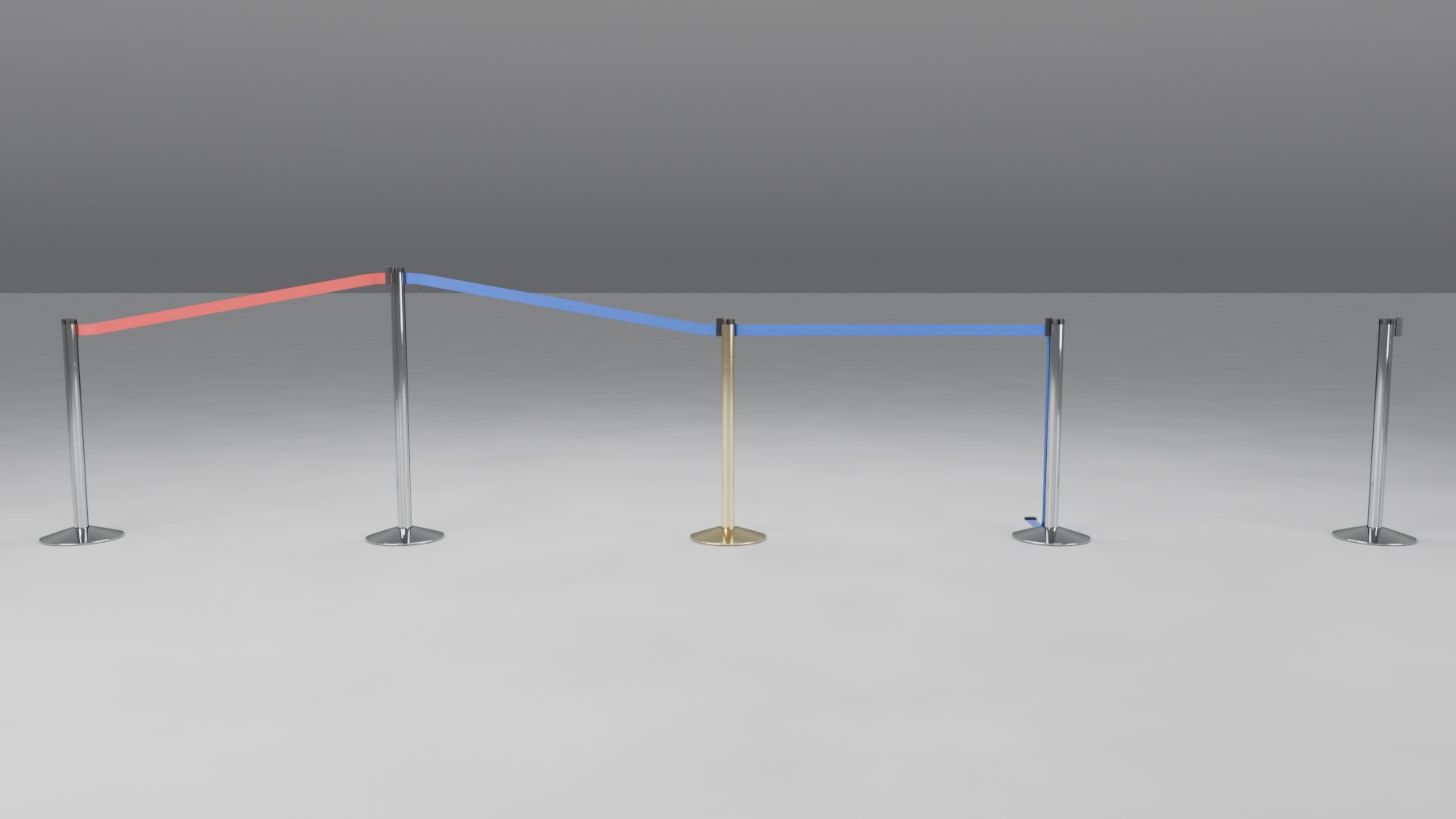
A post has Rotation, Height (Flange Height), Finish and, depending on the product, Top, Mount, Cap, Bands, Stripe Colour, and a sticker row (Choose Sticker…, then “Sticker: <name>”) on posts with a cassette head. The line’s sticker shows until you pick another for this post. A note says “Slot 0 (cassette) faces 90 deg” to tell you which way the belt slot faces. Move Point is below.
A belt, rope, chain, rail or panel shows its length and its own rows:
- Belts and ropes: Colour (Custom Colour, Custom Material). Chains: Colour and Pattern.
- Ropes: Style, Length, Fittings. Chains: Length, Fittings (not on plastic and striped posts, whose hooks are their own). A readout gives a rope’s sag or a chain’s links.
- Double Belt (Double Rope, Double Chain).
- Belts: a Logo picker row (Choose Logo…, “Logo: <name>”) with an eye. The line’s logo shows until you pick another one for this belt.
- Rails: Rail Finish. Panels: Frame Finish, Insert, Frame Height (with buttons for the stock heights) and Slope. For a printed insert the Image row reads “Line’s Images” until you pick one to pin on this panel; its X unpins it. A printed panel also has Fit and Print Both Sides here.
- While unhooked: an Unhooked heading with Hang Style and, for ropes and chains, Loose End.
Connections
Click a post. Under Belts at this post (Ropes at…, and so on; Gaps at this post on a posts-only line) each connector is listed, for example “Belt to post 4”, with its buttons under it. The same words are used on a clicked belt and in the right-click menu.
- Unhook: it hangs from its post (see Look > When Unhooked).
- Remove: it is taken away, as if retracted into its cassette. The posts stay. A removed belt cannot be clicked, so put it back from one of its posts or from the overrides list.
- Hook Back (ropes and chains): both ends of the rope on this post. Greyed with a reason when it cannot be done there.
- Gap (bollards and delineators with chain): no chain on this segment. A gap is listed as “Gap to post 3 (1.39 m clear)” with a Chain button that gives that segment a chain.
- Leave Out (rails and panels, which never hang).
- Put Back undoes any of them.
- Unhook All, Remove All (Leave Out All on rails and panels) and Put Back All act on every connector at the post.
These choices belong to the segment. They survive rebuilds and stay with it when you add posts elsewhere. Files saved with 1.0.1 or earlier, whose belts were unhooked with the old “Hidden” style, open with those belts removed, so they look as they did.
End and wall mounts
An end post (a post with one connector) has an End row with Post and the product’s fittings (Wall Receiver, Wall Cassette, Wall Plate, Wall Hook, Screw Eye, Wall Bracket, Wall Flange or Wall Rail). The pressed button is what is in use. The note under it says whether it is this end’s own fitting, the line’s, or automatic. A Wall Plate has its own Plate and Ring.
- Post keeps a post at that end whatever the wall, even where Auto Wall Ends would make a wall mount.
- A fitting chosen here is this end’s own. Look’s Wall Mount does not change it. Use on All Ends (Look > Wall Ends) makes it follow the line again.
- If you chose a fitting and no wall is within 0.6 m, the note says “No wall within 0.6 m of this end: move the point to a wall” and a post stands there.
- A wall end that cannot be built (the product has no fittings, or it is not a line end any more) shows “Wall end kept, not built” and a Make It a Post button.
Clicking a wall fitting shows its title (“Post 3 (Wall Plate)”) with its own Height and Finish.
Signs
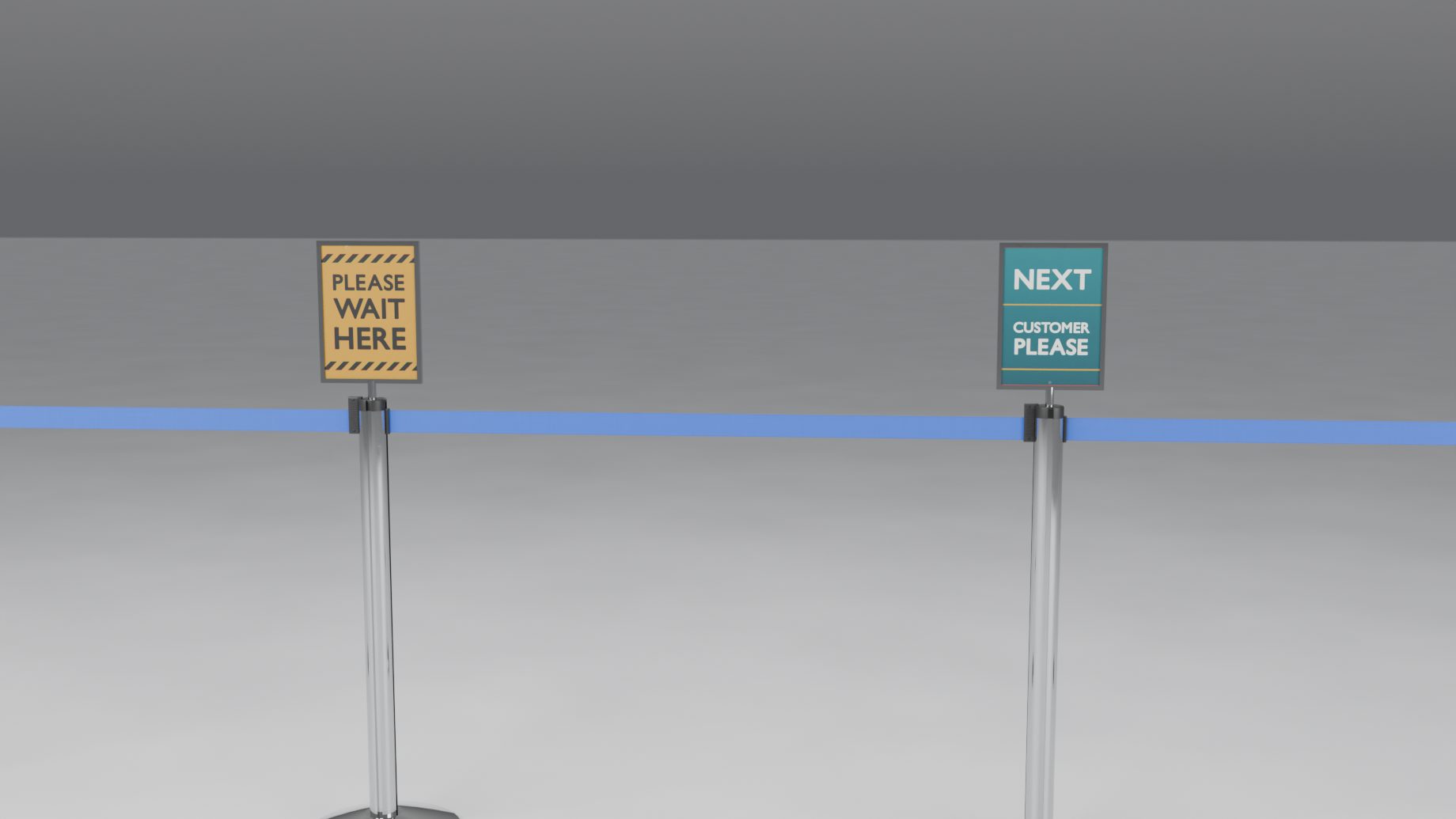
Click a source post of a belt or rope product. Under Sign, press Add Sign. Then:
- Image: click Choose Image… for the Sign Library (22 designs, and the landscape panel designs), or the folder button for your own. The X clears it.
- Size and Landscape are on show.
- The Sign Size, Facing and Print fold has a custom Width and Height (when Size is Custom), Double-Sided, Tilt, Facing, Insert (Image or Custom Material) and Fit (once there is an image). Print Realism is the line’s, in Look.
- Copy to Selected copies the sign to the other selected posts. Remove Sign takes it off.
Chain posts, bollards, delineators, rails and panels have no signs.
Right-click
In Object Mode, right-click a post or belt for the menu:
- Edit Post 3… (Edit Belt 0-1…) opens the same settings as Selected next to the mouse.
- Select Barrier, Rebuild Barrier, Join for Export with any barrier part active.
- On a post: Move Point, an End menu (at a line’s end: Post and the product’s wall fittings) and Add Sign or Remove Sign.
- On a belt: Unhook and Remove, or Put Back. On a rail or panel: Leave Out or Put Back.
Right-click on a curve or mesh shows Make Barrier.